

I’ve been growing my Claude Code (an AI coding tool) config files — CLAUDE.md, MEMORY.md, and the rest — for a while now. The more they grow, the more I catch myself thinking “wait, what did I have this set to last week?” or “when did I even change this?” Basically, I wanted version control.
The obvious answer is a private GitHub repo, and honestly that would’ve been fine. But I’ve got a Synology NAS sitting at home, so I figured — why not run a completely local Git server that never touches the internet at all?
That’s how I landed on Gitea — a self-hosted Git service that looks and feels a lot like GitHub. Getting it running was surprisingly painless. The real disaster happened right after it started working.
- 1 Package Center version vs. Docker version
- 2 "Container Manager" turned out to just be Docker
- 3 Just paste in a docker-compose.yaml
- 4 "Web portal settings" gave me a scare
- 5 The Base URL on the setup screen is fine as-is
- 6 Getting VSCode's Source Control to see a hidden folder
- 7 The real disaster: I'd pushed my API keys along with the entire chat history
- 8 Side note: isn't this the same thing Synology Drive already does?
- 9 Bonus: CLAUDE.md existed in three places, which was confusing
- 10 The actual setup steps, summarized
- 11 Takeaways
Package Center version vs. Docker version
Synology’s Package Center actually has Gitea available as a one-click install. My first reaction was “oh, can’t I just use this?”
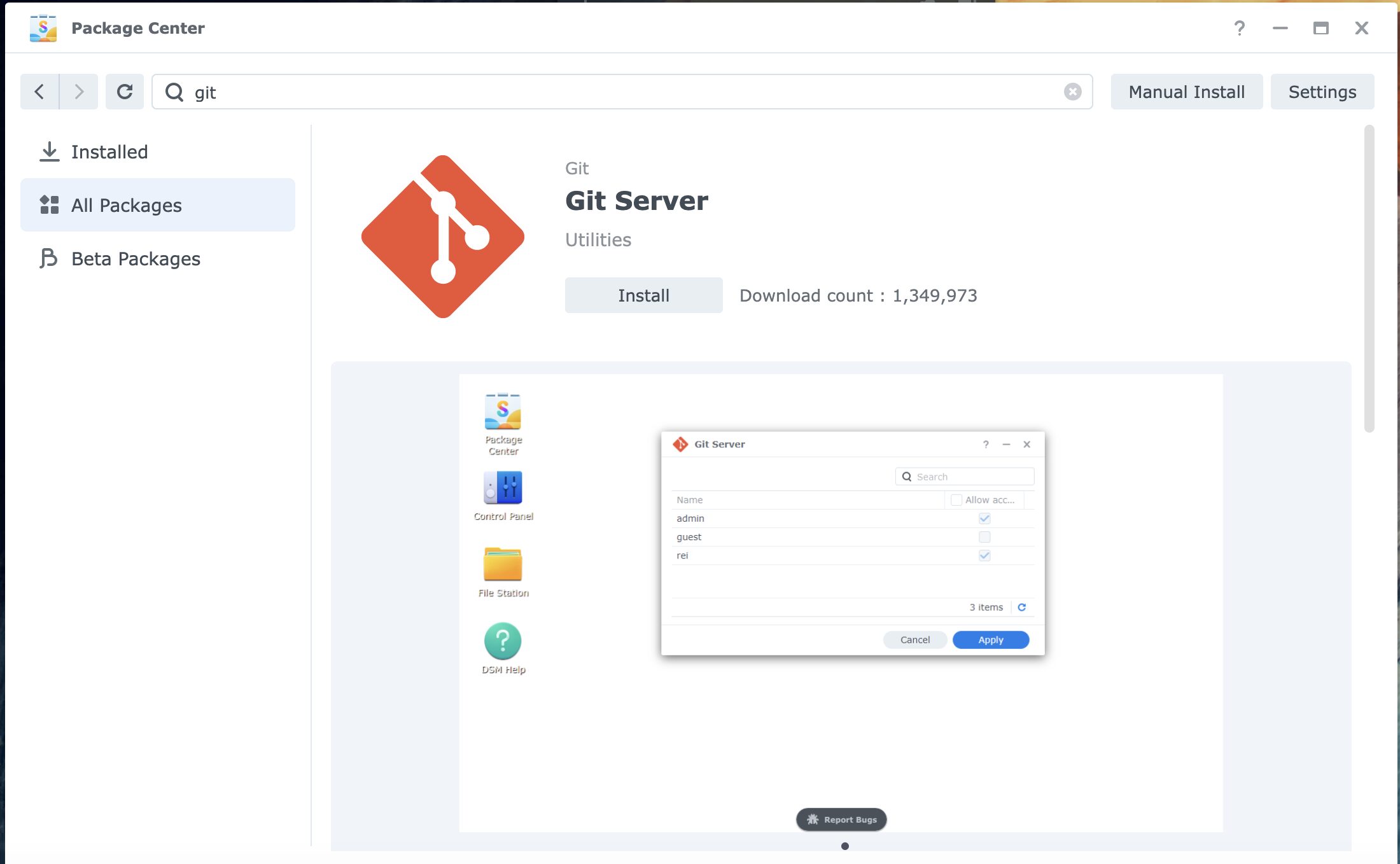
But I went with the Container Manager (Docker) version instead.
| Package Center | Docker | |
|---|---|---|
| Setup effort | ◎ one click | △ needs YAML |
| Version | can lag behind | always the latest |
| Customization | limited | flexible |
| Portability later | × locked to Synology | ◎ runs anywhere |
If you just want it running, the Package Center version is genuinely fine. I went Docker mainly because there’s a chance I’ll move this to a different NAS or server down the line.
“Container Manager” turned out to just be Docker
Every tutorial I found online kept saying “just do this as a Docker project,” which made me brace myself — wait, do I need to install Docker separately too?
Turns out Container Manager literally is Docker. Synology just calls it something else, and there’s nothing extra to install.
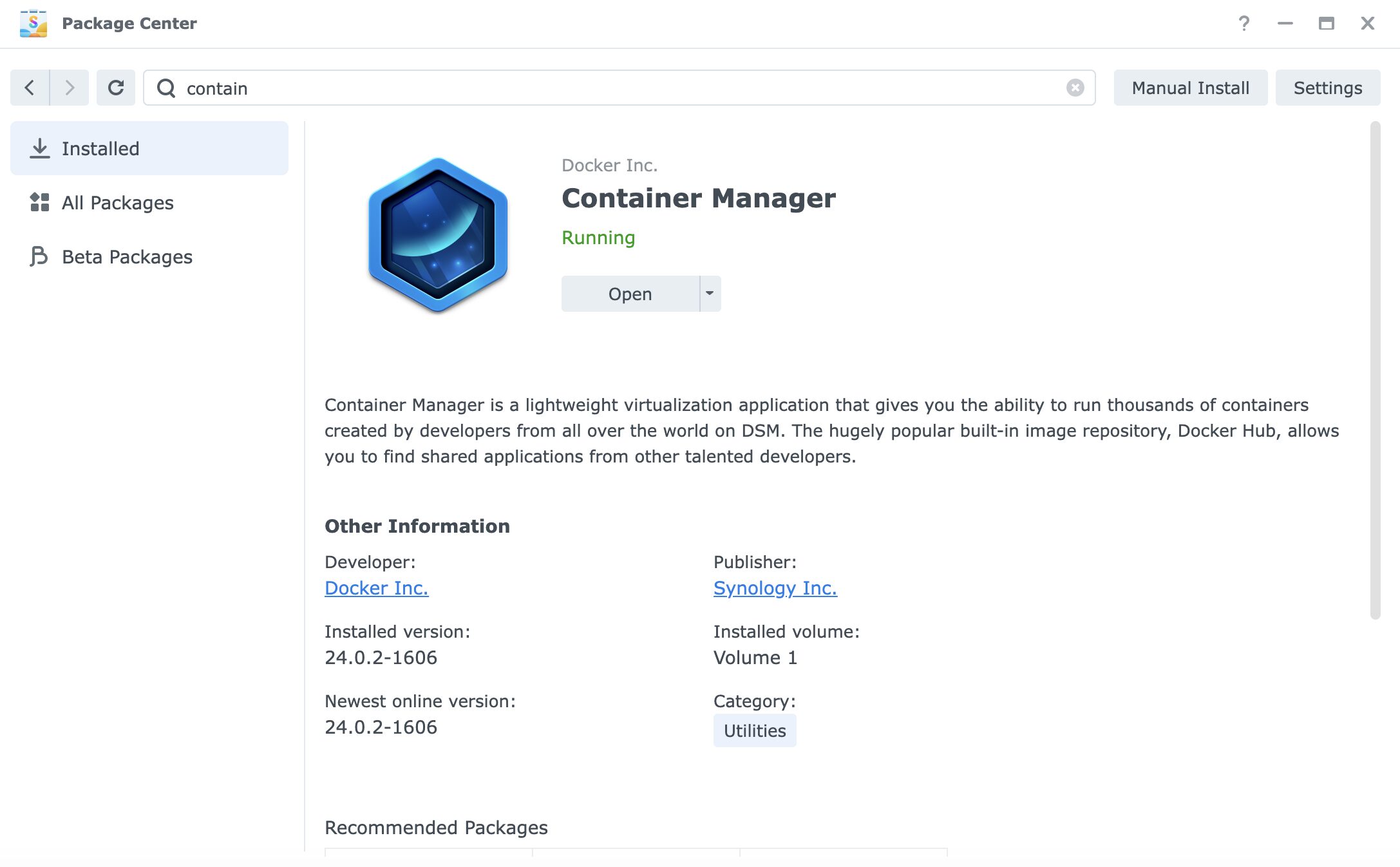
The word “Docker” never once shows up in the Synology UI, even though every article online assumes you’re looking for it. If you don’t already know this, it’s easy to think something’s wrong with your setup.
Just paste in a docker-compose.yaml
Container Manager → Project → Create, and you’ll get a “Source” option. Pick “Create docker-compose.yml” — that’s the right choice.
version: "3"

services:
  gitea:
    image: gitea/gitea:latest
    container_name: gitea
    restart: unless-stopped
    ports:
      - "3000:3000"
      - "222:22"
    volumes:
      - /volume1/docker/gitea:/data
    environment:
      - USER_UID=1000
      - USER_GID=1000
Paste that in as-is and move on. Simpler than I expected.
“Web portal settings” gave me a scare
Right after the YAML step, a “Web portal settings” screen popped up. A portal? Did I need to configure something here?
Turns out it’s just reverse proxy settings (for exposing the service under your own domain), which I didn’t need. If you’re fine accessing it at http://your-synology-ip:3000 directly, just skip this screen without entering anything.
The Base URL on the setup screen is fine as-is
Visiting http://[your-tailscale-ip]:3000 in a browser brought up the initial setup screen. The “Gitea Base URL” field was already auto-filled with my Tailscale IP, and I just left it — turns out either a local IP or a Tailscale IP works fine here.
By the way, I run Tailscale (a VPN service that lets you securely reach your home NAS from anywhere), so I can technically reach this Gitea instance from outside too — though in practice I only ever use it from home.
Getting VSCode’s Source Control to see a hidden folder
Running every Git command through the terminal got old fast, so I wanted to use VSCode’s built-in Source Control panel instead.
Problem: .claude is a dot-prefixed hidden folder. VSCode’s “Open Folder” dialog won’t show hidden folders, and even opening Finder with Cmd+Shift+G lets you see the contents but not select the parent folder itself.
The fix was to just open it from the terminal instead.
# open in a new window
code ~/.claude

# add it to your current VSCode workspace
code -a ~/.claude
That adds .claude to whatever VSCode window is already open, and from there I could push to Gitea straight from the Source Control GUI.
The real disaster: I’d pushed my API keys along with the entire chat history
The push to Gitea succeeded and I was feeling good about it — until I noticed the repo had nearly 880 files in it. 880. I definitely hadn’t created that many files myself.
Digging in, I found that my conversation logs (.jsonl files) had my WordPress JWT tokens and Google access tokens sitting in them, in full. My stomach dropped.
Claude Code automatically saves every conversation under ~/.claude/projects/. Once you start using MCP (a protocol for connecting AI tools to external services), the tokens and credentials used during those calls end up logged right alongside everything else. In my excitement that it was finally working, I’d run git add projects/ and swept the entire folder — sensitive data included — straight into Gitea.
Gitea only runs inside my home Tailscale network, so nothing actually leaked externally — but that’s obviously not a state I wanted to leave things in.
How I cleaned it up
First, I created a .gitignore to exclude the dangerous files:
# conversation logs (may contain tokens/sensitive data)
projects/**/*.jsonl
projects/**/tool-results/
projects/**/subagents/

# session/temp files
session-env/
sessions/
shell-snapshots/
telemetry/
file-history/
backups/

# sensitive config
settings.local.json
But here’s the thing — even after git rm --cached removes a file going forward, the tokens are still sitting in past commit history. I didn’t realize that at first. The only real fix was to wipe the history entirely and start over.
# wipe out the .git folder entirely and start the history over
cd ~/.claude
rm -rf .git
git init
git remote add origin http://[gitea-ip]:3000/[username]/dotfiles.git

# add back only the safe files
git add .gitignore CLAUDE.md MEMORY.md settings.json projects/memory/

git commit -m "initial clean commit - safe files only"
git push --force origin main
That cleaned Gitea up completely, history included.
| File | Status | Why |
|---|---|---|
CLAUDE.md | ✅ OK | instruction file, nothing sensitive |
MEMORY.md | ✅ OK | memory index |
projects/memory/*.md | ✅ OK | memory detail files |
settings.json | ✅ OK | base MCP config, no tokens |
.gitignore | ✅ OK | the exclude file itself |
projects/*.jsonl | ❌ NG | conversation logs — tokens leak in here |
settings.local.json | ❌ NG | can contain credentials |
session-env/ | ❌ NG | machine-specific session data |
Broad commands like `git add .` or `git add projects/` are dangerous — always add files explicitly, or set up your `.gitignore` before you add anything at all. That’s really the whole lesson here.
Side note: isn’t this the same thing Synology Drive already does?
Once Gitea was set up, it occurred to me — I’m already syncing my entire home folder with Synology Drive, and .claude/ is inside that. So why am I also pushing config files to Gitea? Isn’t that redundant?
Turns out they solve two different problems.
| Synology Drive | Gitea | |
|---|---|---|
| What’s in it | everything under ~/.claude/, logs included | only the config files, a handful of them |
| Purpose | full backup / recovery if the Mac dies | tracking changes to config over time |
| Restoring on a new Mac | ◎ sync it and everything’s back | △ only the config files come back |
| “Roll back to last week’s settings” | × not possible | ◎ `git checkout` does it |
Synology Drive is a full backup, Gitea is version history for the configs specifically. Neither one makes the other unnecessary.
Bonus: CLAUDE.md existed in three places, which was confusing
While setting all this up, I also got tripped up by “wait, which CLAUDE.md is the real one?”
~/.claude/CLAUDE.md→ the real one, loaded by Claude Code for every project- Inside my Obsidian vault → an empty file, accidentally created at some point, deleted it
~/Projects/myproject/CLAUDE.md→ project-specific, only loaded when that particular folder is open
The actual load order is: ① ~/.claude/CLAUDE.md (global, always loaded) plus ② whatever project-level CLAUDE.md exists in the folder you have open — both apply together. Obsidian isn’t treated as a “project,” so a CLAUDE.md sitting inside the vault does nothing at all.
The actual setup steps, summarized
- Install Container Manager from Synology’s Package Center
- Container Manager → Project → Create
- Project name:
gitea, path:/docker/gitea, source:Create docker-compose.yml - Paste in the YAML above → Next → skip Web portal settings → Done
- Success looks like
project gitea success - Open
http://[your-synology-ip]:3000in a browser - Confirm the Base URL on the setup screen (fine as-is) → create an admin account → install
- Create a new repository in Gitea (e.g.
dotfiles) - Create your
.gitignorefirst, then init / remote add / add files individually / commit / push from the terminal
Takeaways
Getting Gitea running itself was easier than I expected. The real mistake was getting excited that it worked and just pushing everything at once — it genuinely hadn’t occurred to me that API keys could be hiding inside conversation logs. If you’re using Claude Code or MCP, this is really worth double-checking.
And once I set Gitea up, I found myself wondering whether it was redundant with Synology Drive — turns out they’re solving two completely different problems, and I need both.
Set up your .gitignore first, and add files explicitly instead of in bulk. Those two habits alone would have prevented this whole mess, so hopefully this saves someone else the same scare.
That said, I can now roll CLAUDE.md back to any point in the last few weeks with a single `git checkout`, which honestly feels pretty great.
☕ Enjoyed this post?
I'm a Japanese blogger who spent 8 years relearning English from scratch.
If this post helped you, a coffee would mean a lot — thank you for reading!




Leave a Reply