

What you’ll find in this post
・Why Tailscale on a Synology NAS never gets newer through the Package Center
・How to download the official Synology package from Tailscale and update it by manual install
・Why I chose a version that had been out for a week, instead of the brand-new one
・Where I got stuck: with an exit node on, my home router and NAS pages wouldn’t open
I use Tailscale (a VPN service that securely connects your own devices to each other, wherever they are) every single time I’m out of the house.
From outside, I connect to my Synology (a NAS, a storage box I keep at home) to look at documents, fix my blog posts, and build all kinds of things. It’s a tool I can’t live without anymore.
Then I came across a slightly worrying article about Tailscale.
Lately I keep seeing news about AI-related data leaks, and a service I actually use showed up in one of them. “Wait, is this bad?” I thought, so I asked Claude Code (an AI tool I hand tasks to) to look into it.
And it found a different problem.
Only the Tailscale on my Synology was still an early-2024 version ( ゚д゚)
On top of that, it turned out the Synology Package Center (the screen where you install and update apps) would never deliver the update, no matter how long I waited.
In this post, I’ll explain why it was stuck, how I updated it by hand from Tailscale’s official site, and where I stumbled.

- 1 How it started: a worrying article about Tailscale
- 2 Why it was stuck: the Package Center version is no longer supported
- 3 Why I picked a version that had been out for a week
- 4 The steps: updating by manual install from the official site
- 5 Where I got stuck: my home devices wouldn’t open
- 6 Summary: if you use Tailscale from the Package Center
How it started: a worrying article about Tailscale
The “Tailworm” disclosure
When Claude Code looked into it, the center of the buzz was something called “Tailworm.” On October 25, 2026, a researcher published 11 issues in Tailscale that hadn’t been fixed yet, without warning Tailscale first.
The main one involved “Tailscale SSH” (a feature for running commands on remote machines through Tailscale). In short: someone who has already taken over one device in your VPN could use it as a stepping stone to get admin rights on your other machines. It doesn’t sound like something that lets a stranger walk straight in from the internet.
I don’t use Tailscale SSH on any of my machines (I checked in the admin console). So the main issue didn’t affect me.
Hasn’t something like this happened just recently? A PHP problem where the details got out before the fix did.
It was called “PHP2Shell.” PHP (the programming language that runs WordPress and lots of other websites) had a serious hole that could let someone take over a site without even logging in, and PHP had announced it would release a fix on October 21.
But the details leaked before that. Amazon reported seeing attempts to exploit the hole starting four days before the fix came out (;´Д`A
My blog runs on WordPress, which means PHP, so I had Claude Code check right away that time too. My blog’s server (ConoHa WING) had applied the fix to all of its PHP versions by October 22, so I could breathe again.
When the details of a hole spread before the fix is out, attackers can go after it before defenders are ready. Tailworm follows the same pattern.
Back to Tailscale. I thought, “Phew, I’m fine”… and then.
Only my Synology was left behind
When I had Claude Code check the Tailscale version on all three of my devices (Mac, iPhone, Synology), only the Synology was on 1.58.2, a version from early 2024.
The Mac was on 1.104.2 and the iPhone was up to date. Only the Synology had been left behind.
Because it was so old, it was affected by three of Tailscale’s official security bulletins, separate from Tailworm.
| Bulletin | In short | Fixed in |
|---|---|---|
| TS-2026-008 (July 2026) | A single crafted request can stall a machine that uses Funnel (a way to receive traffic from the internet). Anyone on the internet can do it | 1.98.9 |
| TS-2026-013 (October 2026) | A leaked private key for a certificate. Your device could trust a fake site as the real one | 1.104.2 |
| TS-2026-002 (May 2026) | On the local web settings page, a machine without permission could erase settings such as exit nodes | 1.98.0 |
The first one worried me the most. I use Funnel on my Synology to receive a notification whenever I publish a blog post. If someone stalls it, my posts to X (formerly Twitter) and Facebook don’t go out.

None of them let anyone see my data, and none were on the list of holes being actively exploited (the “KEV” list published by CISA in the US). So I decided: “It’s urgent, but it can wait until I’m home.”
Oh, and I chose to do the update at home on purpose. I’ve set things up so that the only way into my Synology’s settings from outside is through Tailscale. If the update went wrong, I wouldn’t be able to get into my NAS until I got home.
Why it was stuck: the Package Center version is no longer supported
There’s no update button
Back home, I opened the Synology Package Center.
The Tailscale button only said “Open.” There was no update button.
When I opened the details, this is what I saw.
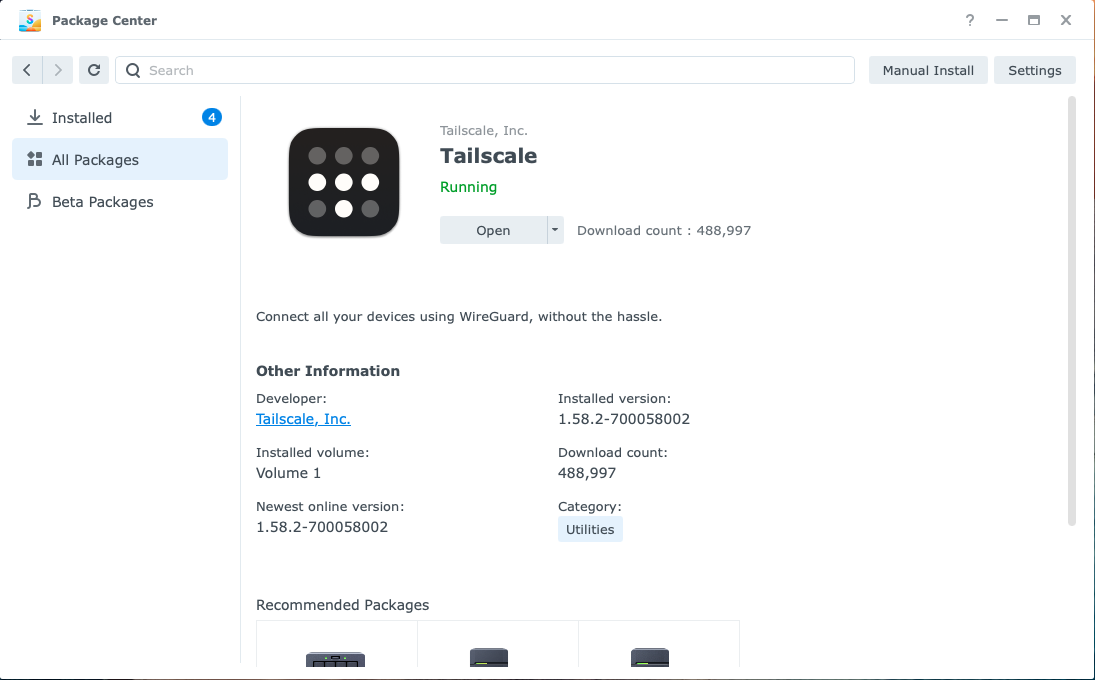
- Installed version: 1.58.2
- Newest online version: 1.58.2
The Package Center is convinced that 1.58.2 is the newest version ( ̄∇ ̄)
At this rate, the update would never come.
I didn’t know the Package Center version was no longer supported, and there was no update button. The first thing I thought was: “So how am I supposed to update this?”
Tailscale: “no longer supported”
When I had Claude Code check Tailscale’s official page for Synology, it said:
The Tailscale package published in the Synology Package Center is no longer supported.
So I asked without thinking:
“Has Synology itself ended support?”
The answer was no. Synology (the NAS and DSM, the operating system and settings screen that runs it) is still supported. What ended was only the Tailscale package listed in the Package Center.
The right way now is to download the Synology file from Tailscale’s official site and install it by hand.
As I dug in, I found that Tailscale itself provides official packages for manual install on Synology, and that was a relief.
By the way, the Package Center’s Tailscale has been downloaded about 490,000 times. I suspect a lot of people are stuck on an old version without noticing.
The Synology Package Center has lots of apps, and there are plenty I haven’t tried yet. But this showed me that “official” doesn’t mean it will be updated forever. I think there’s a real limit to how much of this you can keep track of on your own.
That’s why I now have Claude Code check for new security news every morning.
Why I picked a version that had been out for a week
The newest Tailscale version was 1.104.4 (October 28), the one with the Tailworm fixes.
But I went with 1.104.2 (October 21), one version back.
I have a personal rule: “Only install a package once it’s been out for a week.” At that point, 1.104.4 was only three days old.
Why wait a little
The reason is to guard against “supply chain attacks” (attacks that hijack the way software is distributed and push out a fake, malicious version that looks real).
In September 2025, a developer on npm (a big library of building blocks for programs) had their account stolen through phishing, and malicious versions of widely used packages were published. That time, they were found and removed within hours.
Things like this usually get noticed within hours to a few days, and people start talking. So if you wait a week, someone else has probably caught it by then. Also, a fresh release often gets a quick follow-up that fixes its bugs.
That said, when a version fixes a hole that’s actively being exploited, installing it right away can be safer than waiting. Waiting isn’t always the answer.
In my case, nothing fixed in 1.104.4 applied to how I use Tailscale, and the hole that did affect me (Funnel being stalled, and so on) was fixed in 1.104.2.
I could keep my rule and still get the protection I needed right now. “This should be fine, right?” So I went with 1.104.2.

The steps: updating by manual install from the official site
Here are the actual steps. My NAS is a DS220+ running DSM 7.4.
① Open Tailscale’s official package page
The package isn’t on Synology’s site. It’s on Tailscale’s own site.
https://pkgs.tailscale.com/stable/
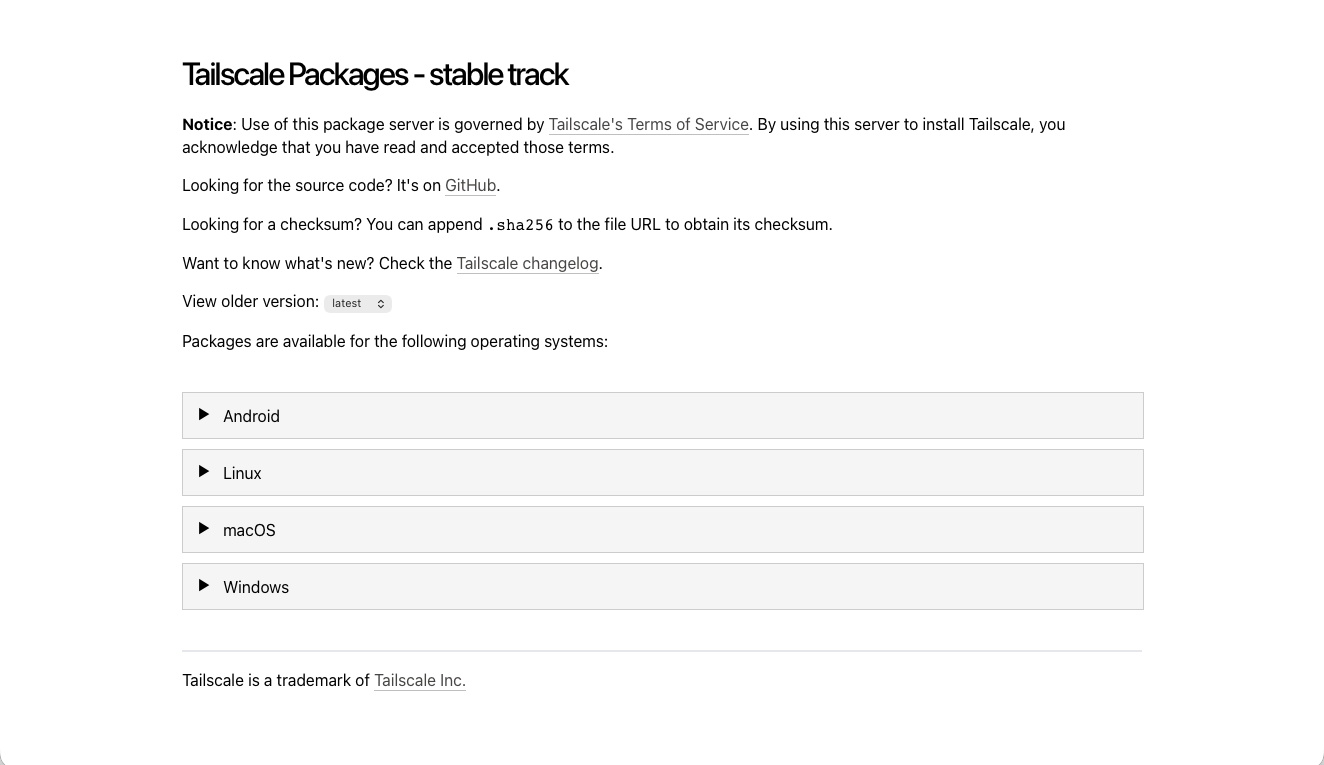
When I opened it, there were only four entries: Android, Linux, macOS, and Windows.
…Wait, where’s Synology?
The Synology files are inside “Linux.” Scroll down and you’ll find “Synology packages.”
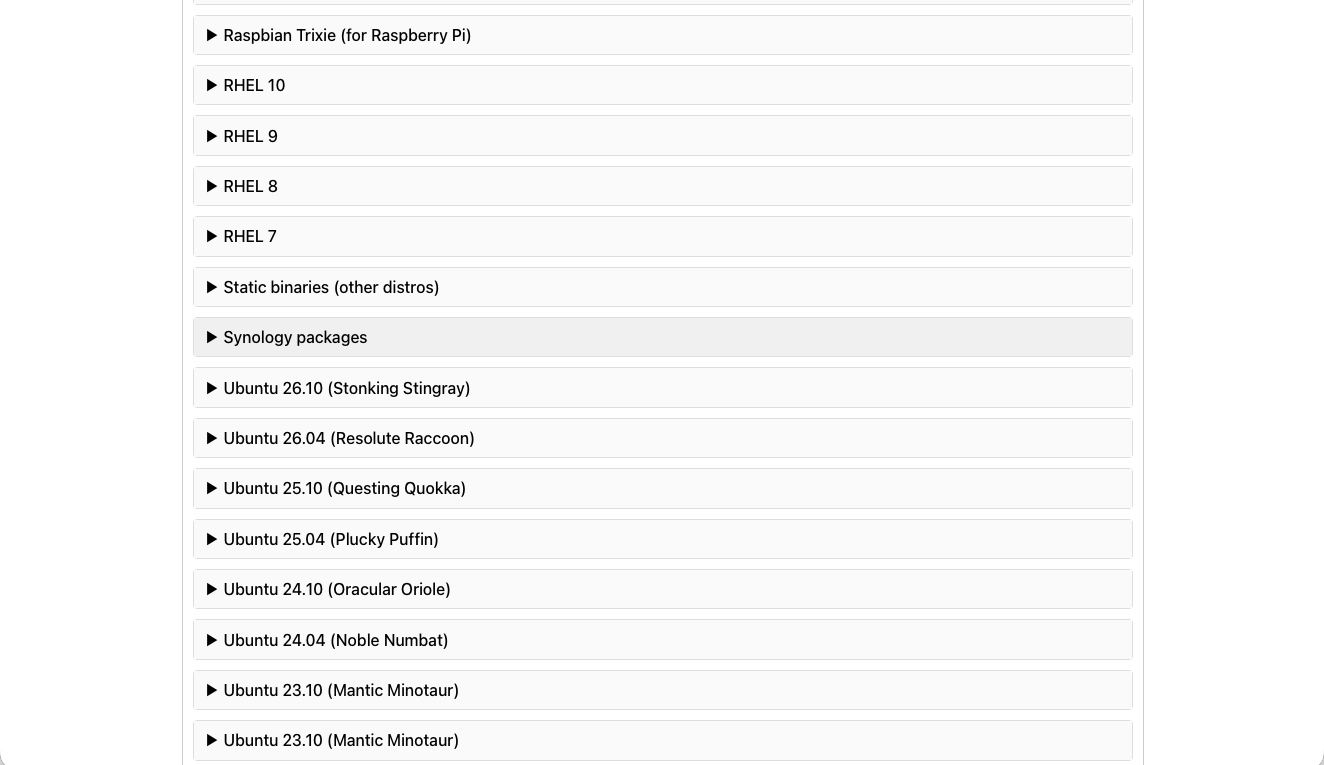
② Pick your model with “Find my model”
Open “Synology packages” and you’ll see a drop-down called “Find my model:”. The files are split by the type of CPU in your NAS, and choosing your model tells you which one to use.
When I chose DS220+, it said “Your DS220+ uses the x86_64 package.” x86_64 means a file for Intel or AMD CPUs.
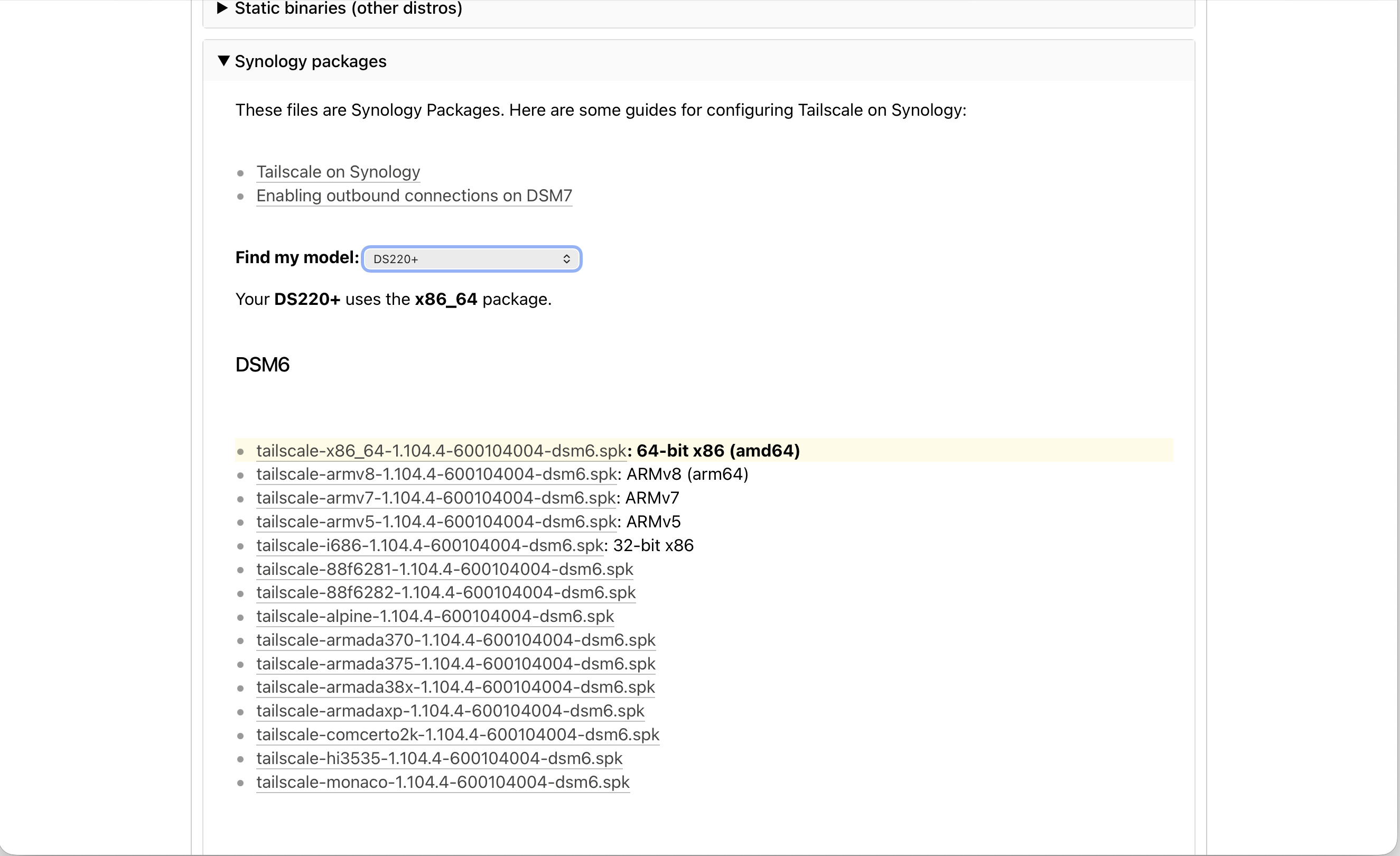
The row that lights up in yellow is in the “DSM6” list above. If you’re on a current DSM (7.x), pick the same type (x86_64 for a DS220+) from the “DSM7” list below it. If you click the yellow row as is, you’ll download the DSM 6 version.
To tell them apart, check that the file name ends in “-dsm7.spk”. The number after the version is also different: DSM7 files use “700…” and DSM6 files use “600…”.
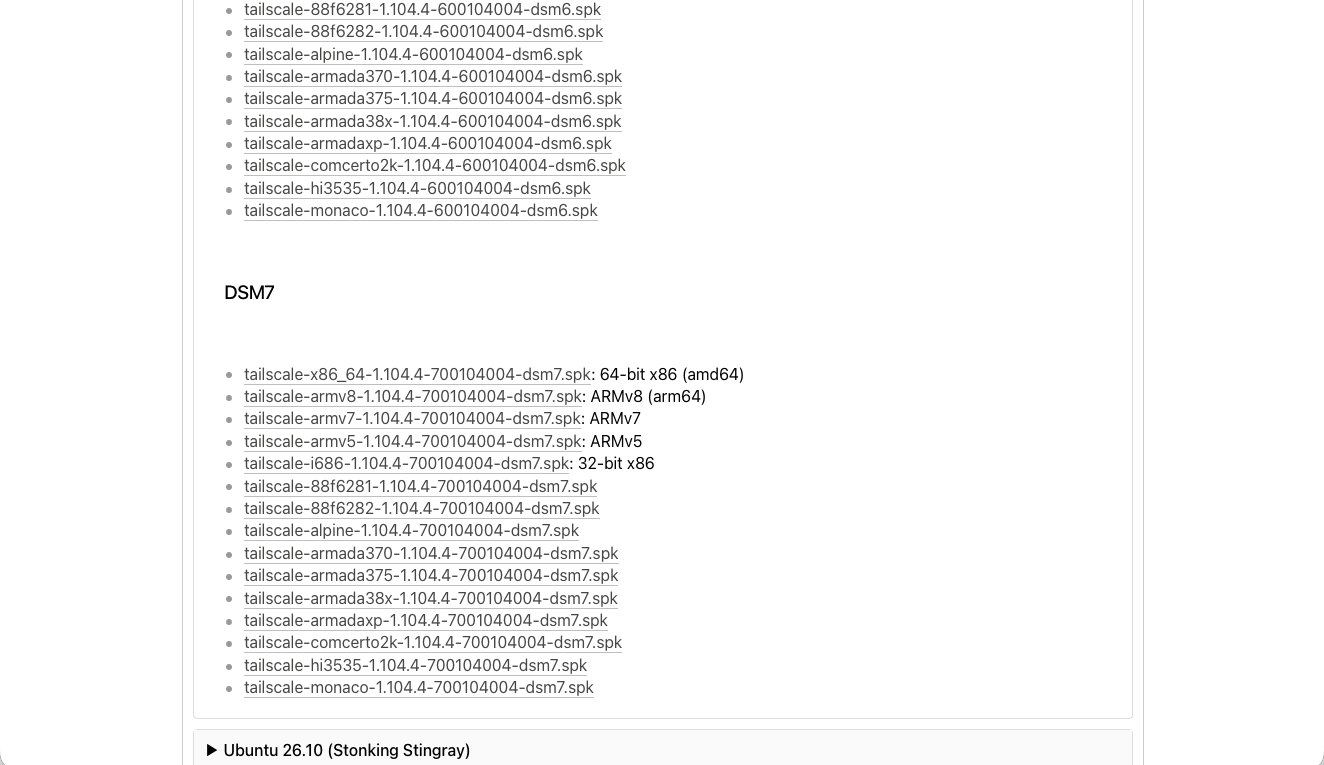
Oh, and if you want the newest version, this is all you need. If, like me, you want a slightly older version, use “View older version” near the top of the page.
③ Download the file and make sure it’s genuine
Download the file in your browser. On a Mac, it goes to your Downloads folder.
…Actually, this time Claude Code had done the download for me, along with checking that the file was genuine (a checksum check).
I didn’t know that, so when I got to the file picker I was like, “Huh? I don’t remember downloading this…” (lol)
To see the official checksum (a fingerprint-like value for the file), add “.sha256” to the end of the file’s URL. On a Mac, type the following in Terminal, and if you get the same value, you’re good.
shasum -a 256 ~/Downloads/tailscale-x86_64-1.104.2-700104002-dsm7.spk(Change the file name to match the one you downloaded.)
④ Install it over the old one with “Manual Install”
Open your Synology’s settings screen (DSM) and click “Manual Install” at the top right of the Package Center.
Click “Browse,” choose the .spk file you just downloaded (the app file for Synology), and click “Next.”
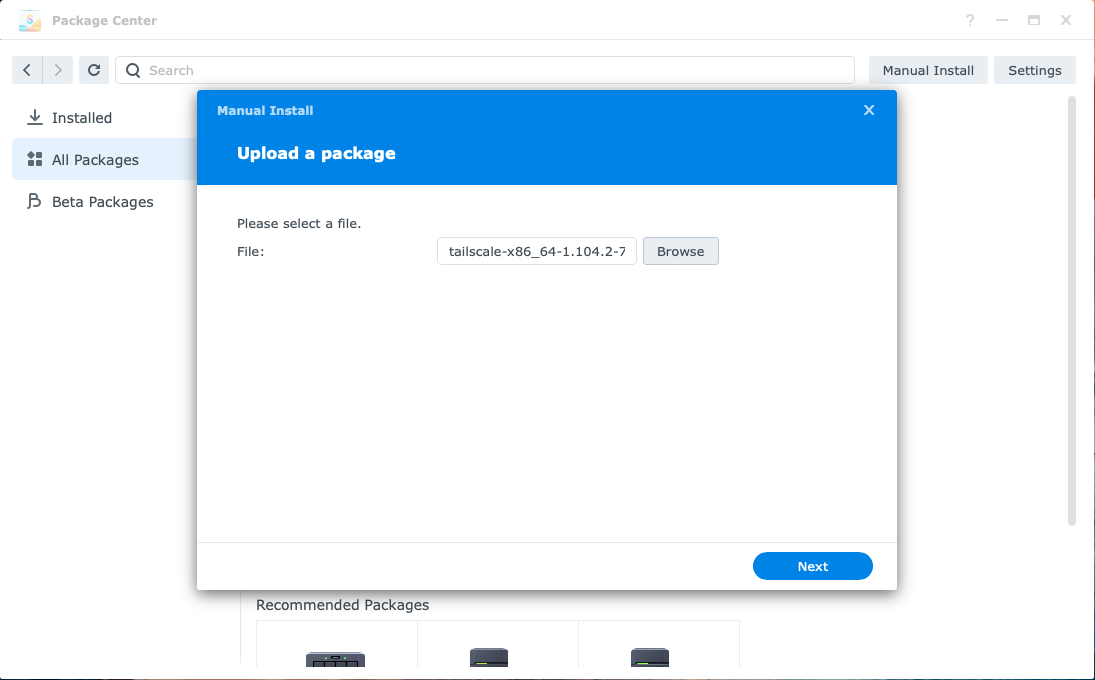
Then this warning appears.
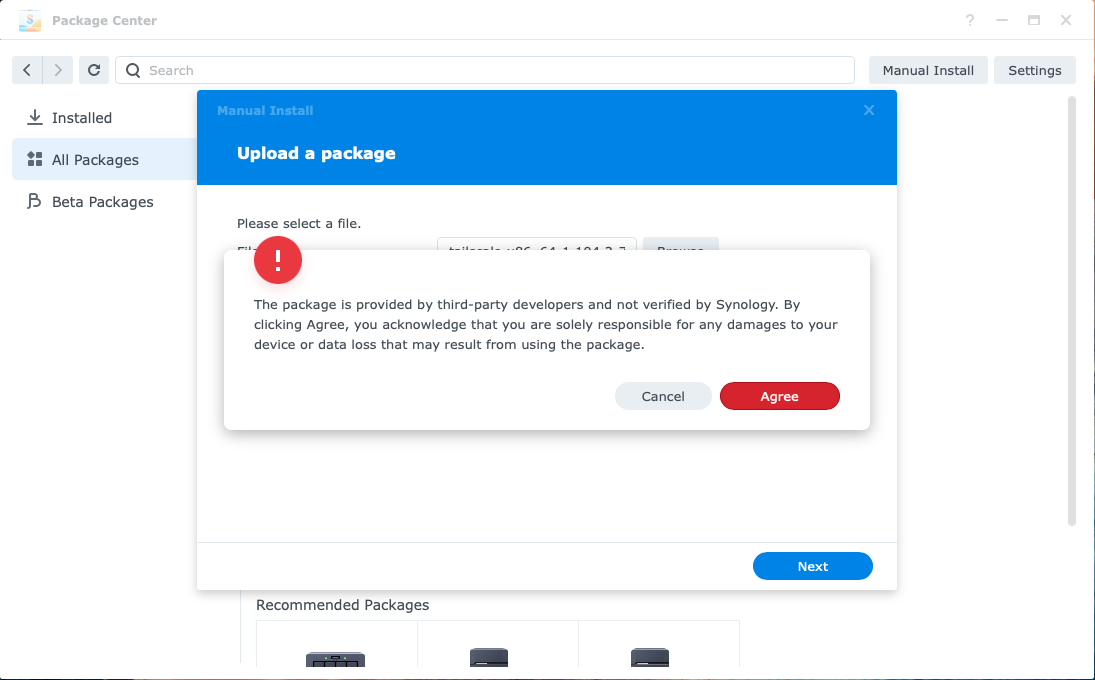
It says the package comes from a third-party developer and hasn’t been verified by Synology, and that if you click “Agree,” you’re responsible for any damage.
It made me a little nervous, but the package is made by Tailscale, Inc. and I’d checked the checksum, so I clicked “Agree.”
The key point is the title of the next screen: “Tailscale – Update.”
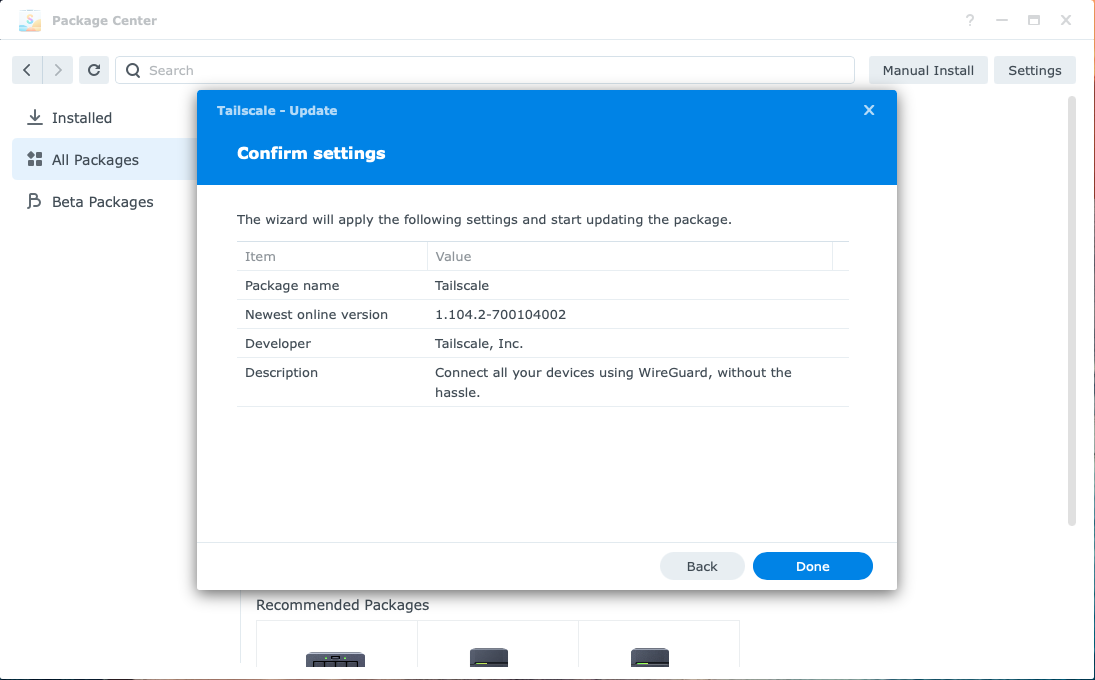
It isn’t treated as a fresh install. It’s treated as an update of what you already have, so your login and settings stay as they are. No need to uninstall first.
Check that the version says 1.104.2, then click “Done.”
⑤ Check that it worked
When it’s finished, open Tailscale in the Package Center.
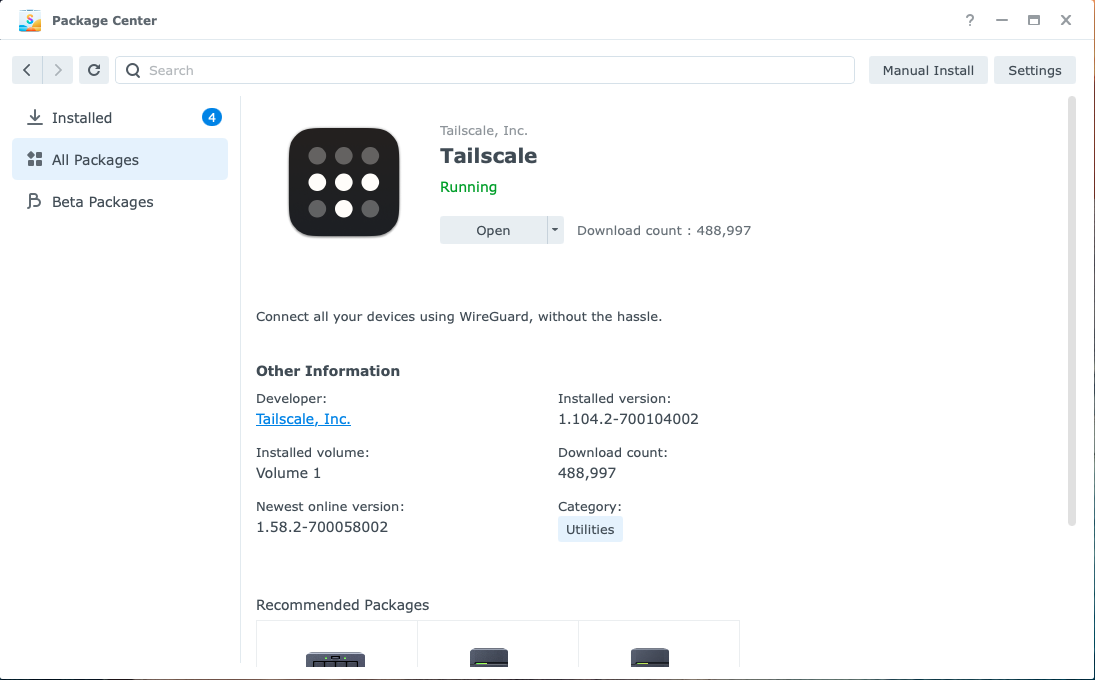
Installed version: 1.104.2, status: “Running.”
Success ♪( ´θ`)ノ
…But look closely, and the Newest online version still says 1.58.2 (lol)
The installed version is newer than the “newest” one. Proof that the Package Center isn’t keeping up anymore.
After that, I had Claude Code check that Funnel (the path that receives my blog notifications) could still be reached from outside, and that I could get online through my exit node (I’ll explain this below). Both worked as usual ♪( ´▽`)
Tailscale’s official guide says updating the package can reset the settings an exit node needs. It didn’t happen in my case, but if your exit node stops working, the official guide says to run the following script from Synology’s “Control Panel → Task Scheduler,” with the user set to “root.”
/var/packages/Tailscale/target/bin/tailscale configure-host; synosystemctl restart pkgctl-Tailscale.serviceWhere I got stuck: my home devices wouldn’t open
The steps themselves were easy, but I tripped up twice before I got there.
With an exit node on, my router page wouldn’t open
I use my Synology as an “exit node” (a feature that makes my internet traffic go out through my Synology at home). It’s so I can use sites that only work from Japan while I’m traveling.
Oh, and I’d also read that using your own Synology as the exit node is safer.
When I looked into it, Tailscale’s official page lists protecting all your traffic on networks you can’t trust, like free Wi-Fi at cafés, airports, and hotels, as one of the uses of an exit node.
From my Mac to my Synology at home, traffic goes through Tailscale’s encrypted path. So it’s harder for a stranger on the same Wi-Fi to snoop on it. From there, it goes out to the internet through my home connection as usual.
With a paid VPN service, you hand your traffic’s exit over to that company. With an exit node, the exit is your own home. I think that’s reassuring too.
Just keep in mind that it can be a bit slower because everything goes through your home connection, and that if your Synology at home is down, you can’t get online through it. I plan to make sure my exit node works before I travel.
Before the update, I tried to check my home router’s settings page too, and…
It wouldn’t open. Nothing showed up.
When Claude Code checked, the router could be reached from Terminal, but not from the browser.
So I turned Tailscale off, and it opened.
It seems that with an exit node on, your browser may not be able to open the pages of devices on your home network (your router, your NAS, and so on). When you need them, turn Tailscale off, or turn on “Allow Local Network Access” in Tailscale’s exit node menu.
Also, while you update Tailscale on the Synology, the exit node itself goes down, and your Mac’s connection goes down with it. So remove the exit node on your Mac before you update.
Even with Tailscale off, only Chrome couldn’t open my NAS
Next, I tried to open my Synology’s settings screen, and this time Chrome said “This site can’t be reached (ERR_ADDRESS_UNREACHABLE).”
Honestly, I thought, “Don’t I need Tailscale even at home to get into my NAS?” My usual bookmark uses the Tailscale address.
But on your home Wi-Fi, you can get in without Tailscale using your NAS’s local address (http://(your NAS address):5000). When Claude Code tried from Terminal, the NAS answered just fine.
The cause seems to be the Mac’s “Local Network” permission. When I opened “System Settings → Privacy & Security → Local Network”…
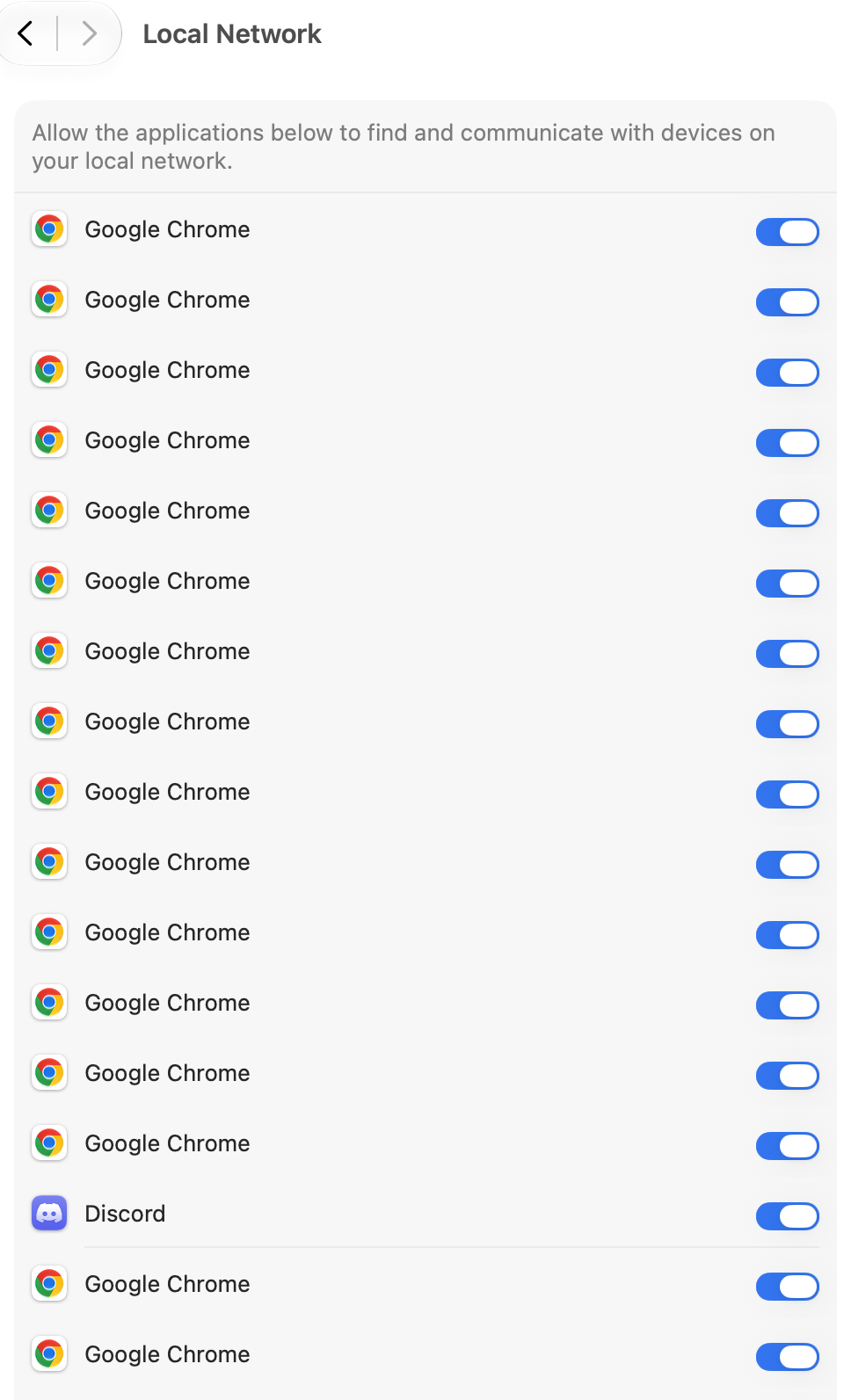
A dozen or so “Google Chrome” entries, all switched on ((((;゚Д゚)))))))
It looks like a new entry gets added every time Chrome updates. I think the permission just didn’t connect properly, even though it’s on.
In the end, it opened right away in Safari, so I used Safari for the rest. For Chrome, I plan to quit with ⌘Q and reopen it, and if that doesn’t work, restart the Mac.

Summary: if you use Tailscale from the Package Center
- Tailscale on Synology won’t get newer through the Package Center (the Package Center version is no longer supported)
- To update, download the file from Tailscale’s official pkgs.tailscale.com → “Linux” → “Synology packages”, and install it over the old one with “Manual Install” in the Package Center
- After choosing your model in “Find my model,” pick the
-dsm7.spkfile from the DSM7 list (the yellow row is for DSM6) - It’s treated as an “Update,” so your login and settings stay as they are
- If you use an exit node, remove it before updating. If your home devices won’t open, turn Tailscale off or try another browser
Looking back, installing from the official site was really easy.
If you use Tailscale from the Package Center, take a look at the “Installed version” there. If it’s still an old version, I recommend switching to the official package.
Oh, and once 1.104.4 has been out for a week, I plan to install it the same way.


References (official)
- Tailscale: Access Synology NAS from anywhere
- Tailscale: Packages (stable)
- Tailscale: Security Bulletins
- Tailscale: Exit nodes
☕ Enjoyed this post?
I'm a Japanese blogger who spent 8 years relearning English from scratch.
If this post helped you, a coffee would mean a lot — thank you for reading!


Leave a Reply