
What you’ll find in this post
・How Claude Code showed my secrets on screen again o(`ω´ )o, and why it happened
・How I moved the keys sitting in plain text in a config file (mcp.json) into the macOS Keychain (a built-in safe)
・A setup where Claude Code can do its work without ever seeing a key’s value, plus a “guard” that stops accidental slips
・The three places I tripped up, and how I cleaned up keys I no longer used
Every day, I have Claude Code help me with all sorts of things: posting drafts to WordPress, fixing articles, even setting up n8n (an automation tool).
To make that work, I had put the keys for logging in to WordPress (tokens and passwords) somewhere Claude Code could use them.
In an earlier post, I wrote about how one of those keys (a JWT token) ended up in plain view in the chat window.
Related post: My MCP JWT token was in plain view in the chat window (in Japanese)
My conclusion back then was “there was no perfect solution.” I also wrote, “Maybe storing keys in my Mac’s credential storage is the best way, but there’s still room to think it through.”
So, this time.
I was working on that “room to think it through”… and my secrets showed up on screen again. (;´Д`A
In this post, I’ll share how, as a Claude Code security measure, I moved every key into the macOS Keychain and built a setup where Claude Code can do its work without seeing the keys. I tripped up three times along the way, so I’ll be honest about those too.

- 1 My secrets showed up on screen again
- 2 Keys go in the macOS Keychain: from “it can read them” to “it never has to”
- 3 I tripped up three times
- 4 I also cleaned up keys and connections I wasn’t using
- 5 “In the Keychain, it can’t read them anymore, right?” → I added a guard
- 6 Before and after
- 7 Summary: Claude Code security means not letting the AI see your keys
My secrets showed up on screen again
It started with an expiring token
The key that connects WordPress and Claude Code (a JWT token: a string that proves to WordPress that “this person is allowed to log in”) was set to expire on October 29.
Since I had to make a new one anyway, I decided to finally take care of a task that had been sitting on my to-do list forever: “Move the keys sitting in plain text in my config file into the Keychain.”
The Keychain is like a safe that comes built into every Mac. It stores passwords and other secrets in encrypted form.
Oh, and by the way, I had already moved the n8n key into the Keychain earlier. This time, I’d make everything match that setup.
My “masked” output leaked two secrets
First, Claude Code tried to check which items were in the config file (mcp.json: the settings Claude Code uses to connect to other services).
Of course, it wasn’t supposed to show the values, so Claude Code wrote its own “masking” step before displaying anything. The rule was: hide anything long, and anything with words like token or secret in it.
But then…
Two short secrets that didn’t match the masking rule showed up on screen, just as they were.
One was the secret for connecting Google’s to-do list (Google Tasks), and the other was my WordPress application password (a dedicated password that lets outside tools log in to WordPress). The masking decided what to hide mostly by length, so these two seem to have slipped through because they were short.
Claude Code reported it right away on its own: “The masking missed two values and they were displayed. Since they’re now in the conversation log, I recommend treating them as exposed and creating new ones.”
Together we also checked whether the conversation logs were set to be pushed to Gitea (the Git server I run myself). They weren’t. But the conversation itself is sent to the AI’s servers. So I decided to replace them.
Honestly, this is how I felt at that moment:
“So it really does end up in the conversation after all. Let’s stick to the policy that Claude can’t read the keys.”
It was the same last time: just asking Claude Code to “be careful” only gets you so far.
Keys go in the macOS Keychain: from “it can read them” to “it never has to”
In my earlier experiment, Claude Code could still read the keys even after I put them in the Keychain. Claude Code runs as me (my Mac user account), so any safe I can open, Claude Code can open too.
If I required fingerprint authentication, it couldn’t read them anymore, but then Claude Code couldn’t post for me automatically. That was the dilemma.
The answer Claude Code and I came up with this time was:
“It can read them, but we remove every situation where it would need to.”
Here’s how it works
- Keys live only in the macOS Keychain (never written in config files)
- I put the keys in myself. I run a small dedicated tool in Terminal (the text-based way to control a Mac) and paste the value. The input isn’t shown on screen, so Claude Code never sees the value, not even once
- When Claude Code connects to WordPress, a small script (a short program that runs on its own) handles everything inside: taking the key out of the Keychain and sending it to WordPress
- All Claude Code gets back is the result of the connection
In other words, only the script ever touches the keys, and they never appear in the conversation at all.

“Is it okay for this to live inside .claude?”
The tools (scripts) were created inside Claude Code’s settings folder (.claude). And this is where I got stuck for a moment.
“The files are inside .claude. Is that really okay?”
The answer was “Yes, it’s fine.” What lives in .claude is only the tool for putting keys in; the keys themselves go into the Keychain. The tools get backed up to Gitea, but the keys never do. And the tool works no matter which folder you open Terminal in.
Here’s pretty much all there is to the tool:
# Read the value without showing it, then store it in the Keychain
read -r -s NEW_VALUE
security add-generic-password -a "$USER" -s "item-name" -w "$NEW_VALUE" -U
-U means “if an item with the same name exists, overwrite it.” So if you ever need to put a key in again, the same command works.
If you keep keys in a .env file
Oh, and by the way, when I searched around, it looked like a lot of people want to stop Claude Code from reading .env files. If you keep keys in a .env file (a file for an app’s keys and settings), you can block Claude Code from reading it in its settings file (settings.json).
"permissions": {
  "deny": ["Read(./.env)", "Read(./.env.*)"]
}
Still, blocking it doesn’t change the fact that the keys are sitting in plain text on your computer. That’s why my policy is to not create .env files on my computer in the first place. Keys go either into the settings of the service that uses them (like Vercel’s environment variables) or into the Keychain, like this time. That feels the safest to me.
I tripped up three times
1. “permission denied”: it wouldn’t run
I made a new JWT right away and ran the tool in Terminal, and…

The cause was Claude Code. After making the tool, Claude Code added one comment line, and the “safe rewrite tool” it used for that had removed the file’s “OK to run” setting.
I had that tool fixed too, so it now keeps the original setting when it rewrites a file.
2. Stopped by “unbound variable”
When I ran it again, this time I got the error “SERVICE」: unbound variable.” It basically means, “I don’t know any container called SERVICE」.”
Apparently the old bash that comes with macOS (the program that reads and runs commands) treats a Japanese closing bracket “」” right after a variable as part of the variable’s name. Is that even a thing? ( ̄∇ ̄)
Wrapping the name in braces like ${SERVICE} fixed it. This time, Claude Code put in a dummy value and deleted it again to make sure everything worked before handing it back to me.
3. I pasted the password twice
After the JWT, it was time to recreate the application password. And this is where I messed up.
“I accidentally pasted the password twice with Command+V. I couldn’t see anything, so I held down Backspace, pressed Command+V just once more, and hit Enter. I hope it went in.”
Since the input isn’t shown on screen, you can’t see how much you’ve deleted. Sure enough, the login failed.
Here, Claude Code checked only the “shape” of the value, without looking at it. A WordPress application password has the shape “six groups of four characters” (29 characters including spaces), but what had gone in was 50 characters long. The leftovers from the first paste had mixed with the second one.
If you make a mistake while typing something you can’t see, don’t try to delete it. Press Ctrl+C (the key that stops the current operation) and start over. That was the right answer. After I entered it again, the login worked.
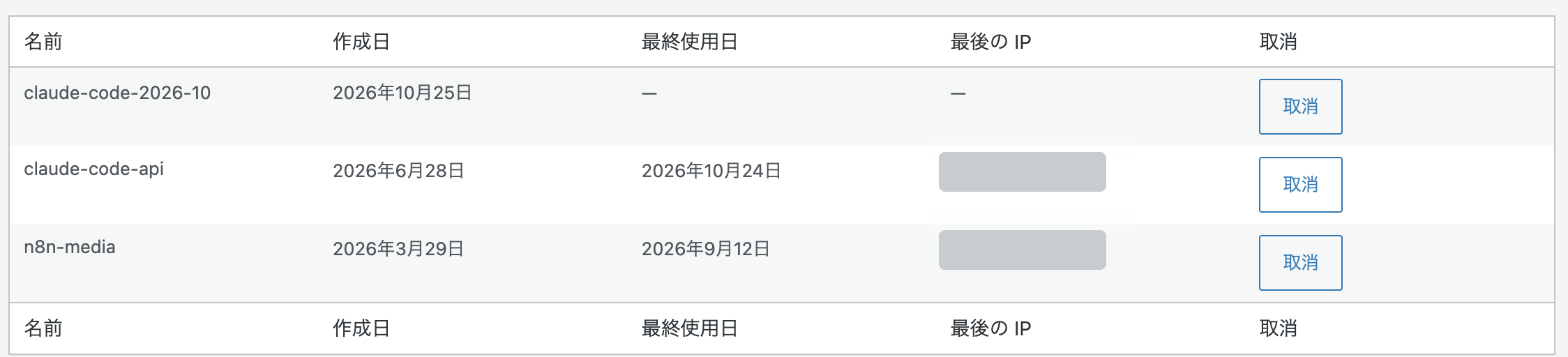
Oh, one more thing. After creating the JWT, I got worried:
“I might have made it with a one-hour expiry…”
When I checked the screen, the one-hour token had already been revoked, and the active one was the 30-day token.
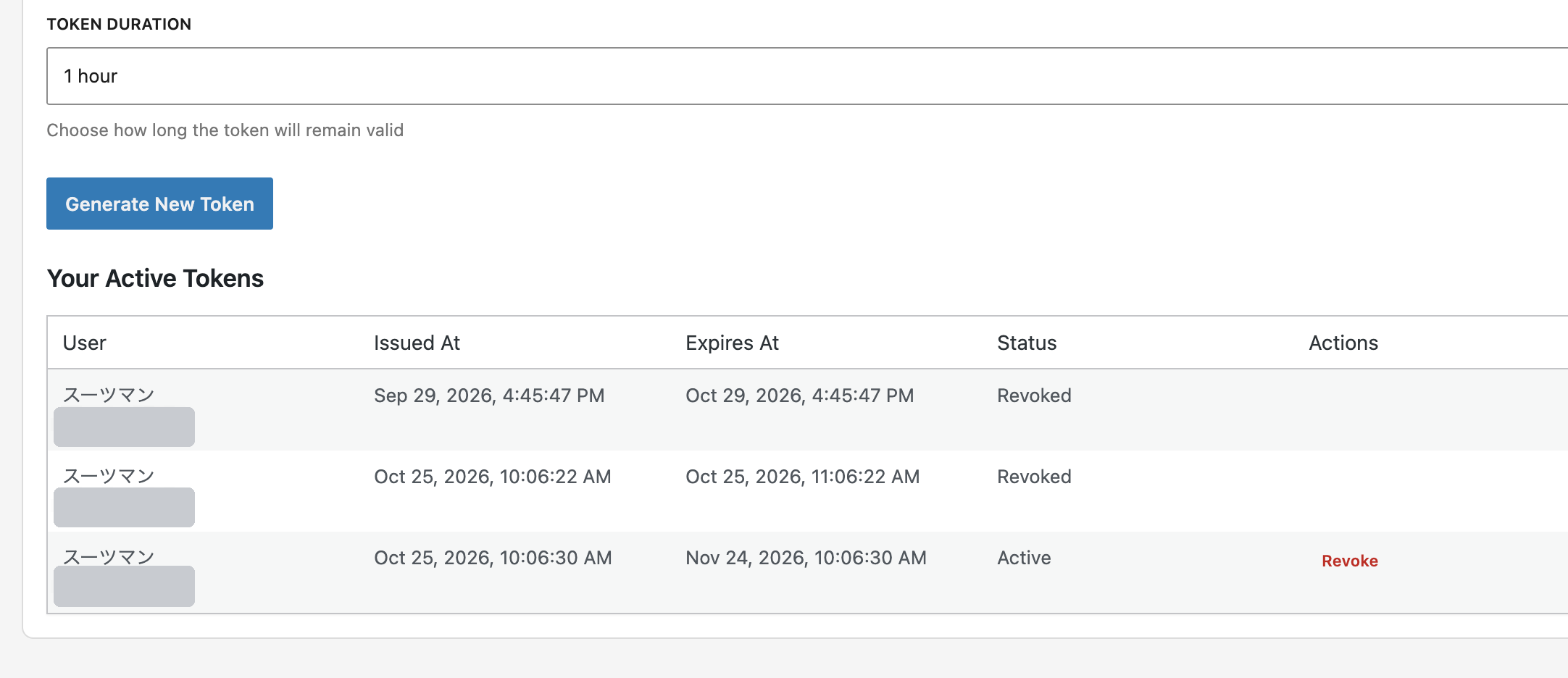
Thirty days seems to be the longest option, so from now on I’ll probably be making a new one every month.
I also cleaned up keys and connections I wasn’t using
Check the records to see what’s really unused
“I don’t know whether I’m using the MCP servers or not, so please take a look.”
MCP servers are the “connectors” that let Claude Code hook into services like WordPress and Google.
Claude Code went through its conversation logs and counted how many times each one had actually been used. At first it said “116 times in October,” and I thought, wait, that many? It turned out it had also counted every time a name simply appeared in the tool list (lol). After recounting:
- The WordPress connector: last used on October 4, and it couldn’t even connect anymore
- The Google Tasks connector: used just once, on August 29
I removed both. Once a connector is gone, you don’t need a key for it in the first place.
I also had Claude Code replace the old steps in my instructions with the new tools. I often use the flow for uploading photos to WordPress for my walking posts, so we uploaded a test image, deleted it, and confirmed that it all worked.
Before deleting, check that nothing else shares it
Next, I deleted the secrets left on the Google side. What I was careful about here was whether they were shared with the Google settings n8n uses. If I deleted the wrong thing, things like my n8n notifications would stop working.
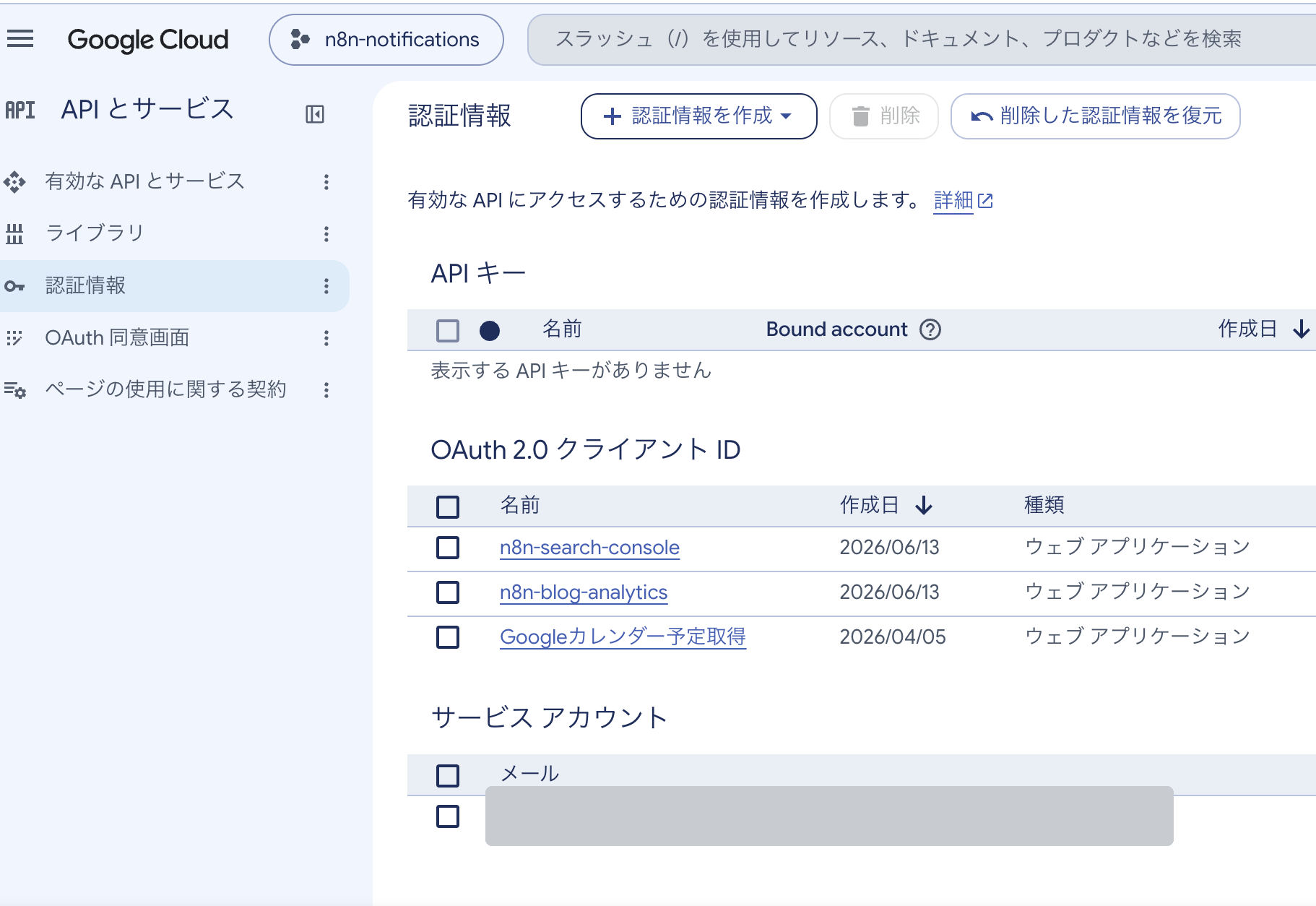
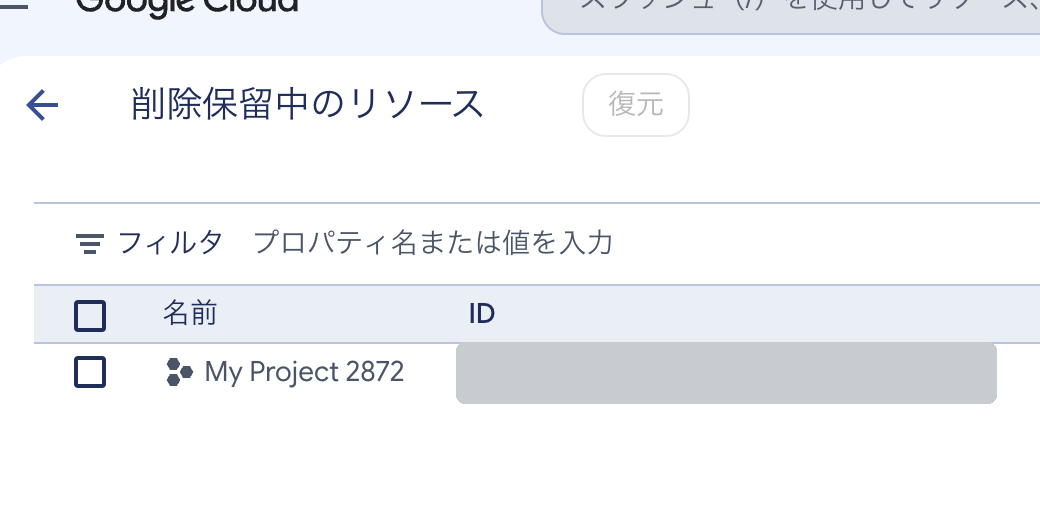
Looking at the project list, I found one more project without a proper name, “My Project 2872,” and inside it was just one item for Google Tasks.
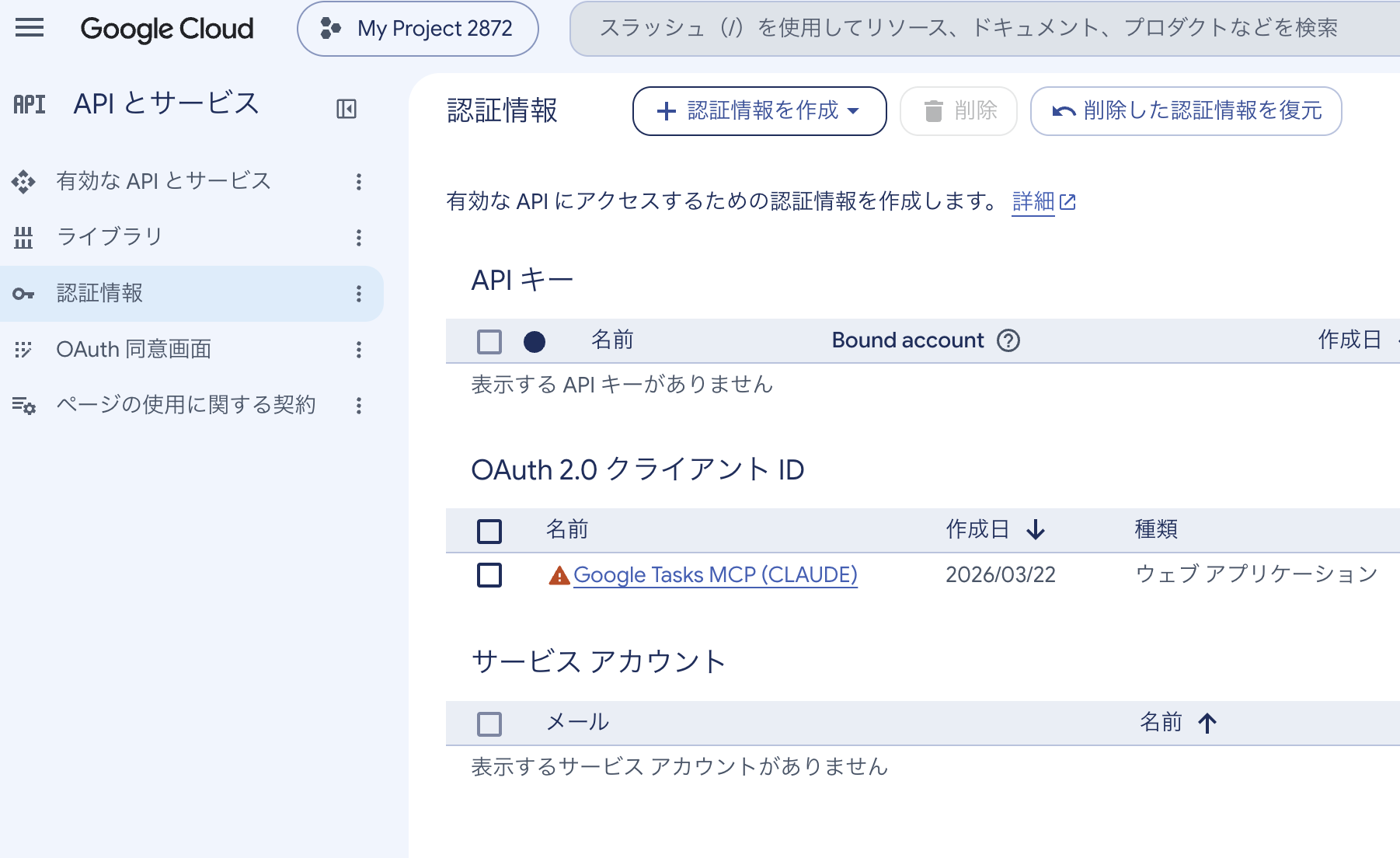
I deleted just that one and shut down the project too (it can be restored for 30 days).
Keys were hiding in an unexpected place, too
One more thing turned up: an old key left in ~/.zprofile (a settings file that’s read every time you open Terminal).
With it written there, any program started from Terminal could read it, so I made sure it wasn’t in use and then deleted it.
That brought the number of keys in my config files down to zero ♪( ´▽`)
“In the Keychain, it can’t read them anymore, right?” → I added a guard
Finally, I asked about something that had been on my mind the whole time.
“Once they’re in the Keychain, Claude can’t read them anymore, right?”
Claude Code’s answer was honest.
Not “it can’t read them,” but a setup where it doesn’t read them and doesn’t need to. The Keychain lets you take items out with your own permissions, so technically Claude Code can take them out too. In fact, the script does take them out and use them.
…So that’s how it is (;´Д`A
With that in mind, Claude Code suggested two ways to lock things down further:
- A: Add a guard. If Claude Code tries to type a command that takes out a key’s value, a Claude Code setting stops it automatically
- B: Show the Mac’s “Allow?” prompt every time a key is taken out. It’s reliable, but I’d be clicking dozens of times every time I work on a post
I wondered whether option A would need my confirmation every time, so I asked. It doesn’t. It only steps in when a command that takes out a value is typed directly; my everyday work goes on as usual. It doesn’t affect my own Terminal, either.
“Okay then, please go ahead, as long as it makes things safer.”
Here’s roughly what the setting looks like (a check added to Claude Code’s settings.json that runs before a command is executed):
"hooks": {
  "PreToolUse": [
    {
      "matcher": "Bash",
      "hooks": [
        { "type": "command", "command": "python3 \"$HOME/.claude/scripts/keychain_guard.py\"" }
      ]
    }
  ]
}
After adding it, I confirmed that five kinds of commands it should block were blocked, and five kinds of everyday tasks still went through.
That said, this isn’t a perfect wall either. If Claude Code wrote a new program and took the key out from inside it, the guard couldn’t stop that kind of detour. It’s really there to mechanically prevent “oops” moments.
My earlier conclusion, that “handing work to AI means trusting it to some degree,” hasn’t changed. But I feel I’ve gotten a lot closer to a setup where those “oops” moments are much less likely.

Before and after
| Key / setting | Before | Now |
|---|---|---|
| WordPress JWT | Plain text in a config file (an old one also in my Terminal settings) | Keychain only (recreated every 30 days) |
| WordPress application password | Plain text in a config file | Keychain only; the old one revoked |
| Google Tasks secret | Plain text in a config file and my Terminal settings | Client deleted; project shut down |
| Connectors (MCP servers) | 5, including WordPress and Google Tasks | Only the 3 I actually use |
| Keys in config files | 3 | 0 |
| Guard | None | Automatically blocks commands that take out keys |
Summary: Claude Code security means not letting the AI see your keys
- Don’t trust output the AI says it “masked.” For config files, don’t display the contents; look at the item names only
- The most reliable fix is to remove every situation where the AI handles keys. It can still read them technically, so add a guard as a second layer
- If something leaks, replace it right away. Before deleting anything, check that nothing else shares it
- Clean up unused connectors and keys after checking the records
- If you make a mistake while typing something you can’t see, don’t delete it; press Ctrl+C and start over
Last time ended with “there was no perfect solution.” This time isn’t perfect either, but I feel my defenses have gone up a notch.
Don’t show your keys to the AI. Don’t even create situations where you’d have to. That’s my answer for now.
If you use Claude Code or MCP too, take a look at your own config files and check whether any keys are sitting there in plain text, even if you only look at the item names.
Oh, and by the way: if you switch to a new computer, the contents of the Keychain don’t come with you, so you’ll need to put the keys in again. When that happens, I plan to have Claude Code walk me through it.


☕ Enjoyed this post?
I'm a Japanese blogger who spent 8 years relearning English from scratch.
If this post helped you, a coffee would mean a lot — thank you for reading!


Leave a Reply