

It’s been a while since my last post here. I’ve been busy with the blog, but two years into learning English, I still stumble constantly — and every day, my study time keeps getting eaten by finding better ways to work faster.
Recently at work I needed to publish a bunch of catalog photos on our website, and I wanted folders named like “01-02” for pages 1–2, “03-04” for pages 3–4, and so on.
The catalog runs to page 146. Doing the math, that’s 73 folders — there’s no way I’m creating a new folder and renaming it “01-02” seventy-three separate times.
So here’s the trick I used to get out of that.
- 1 How to batch-create numbered folders
- 2 What you'll need
- 3 Create a new folder on your desktop
- 4 List out the folder names you want to create, in Excel
- 5 Drag it down to however many folders you need
- 6 Column A gets just one thing: “md”
- 7 Save it as a CSV in your working folder on the desktop
- 8 Change the .csv extension to .bat
- 9 If you don't see the file extension
- 10 Finally, double-click the .bat file
- 11 73 folders, done in about 3 minutes
- 12 Does this only work for sequential numbers?
- 13 Does this work on a Mac?
How to batch-create numbered folders
This uses simple, everyday PC operations, so give it a try.
The more time-saving tricks you pick up, the more your work efficiency climbs ^^
What you’ll need
- Excel
- A Windows PC
That’s it. Let’s dive in.
Create a new folder on your desktop
Anywhere on the desktop works — create a new folder.
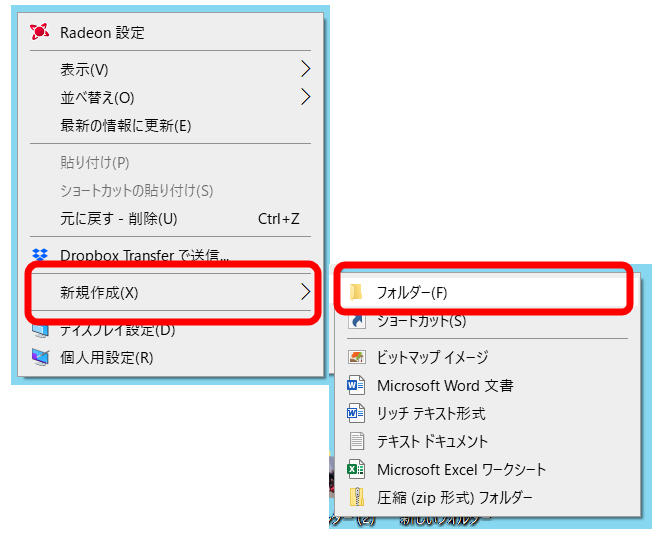
Name it whatever you like — I’ll call mine “build.”

📋 What this article covers
- How to batch-create numbered folders using Excel and a Windows batch file
- How to auto-generate folder names (like “01-02”) with a formula
- How to convert a CSV to a .bat file and run it with a double-click
- The trick that gets 73 folders done in about 3 minutes
List out the folder names you want to create, in Excel
First, enter the folder names you want to create in column B of Excel.
I want them formatted as “01-02,” “03-04,” and so on — but typing each one out individually is tedious, so I’ll build them with a formula instead.
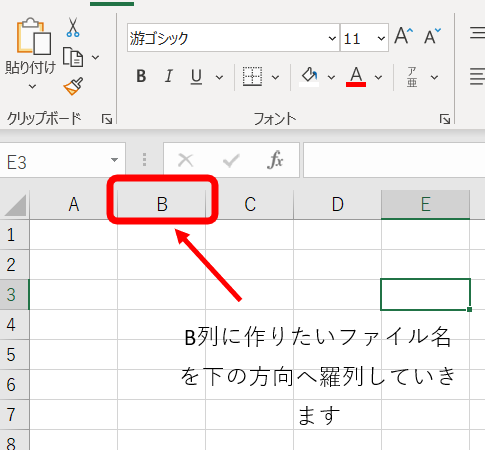
If you type numbers directly into Excel, it drops any leading zero, so first switch the cell format to text.
Here I’ll use column C for the odd number, column D for a hyphen, and column E for the even number, then combine them — so I need to switch C and E to text format.
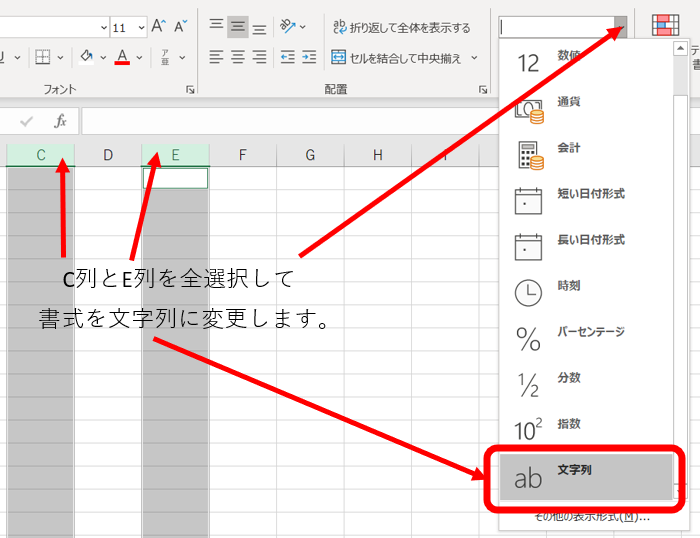
Now “01” can be entered properly.
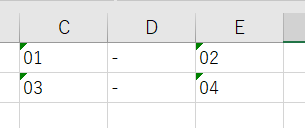
With that set up, use a formula in column F to combine C, D, and E.
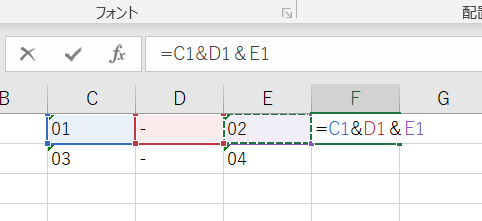
Column F now shows “01-02.”
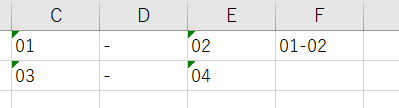
Drag it down to however many folders you need
Since I want folders all the way through the catalog’s last page, I need folders up to page 146. So I’ll drag column C’s numbers down to 145.
Select “01” and “03” in column C, and you’ll see a small green square appear at the bottom-right of the green selection border.
This one, right here:

Left-click that and hold it down while dragging.
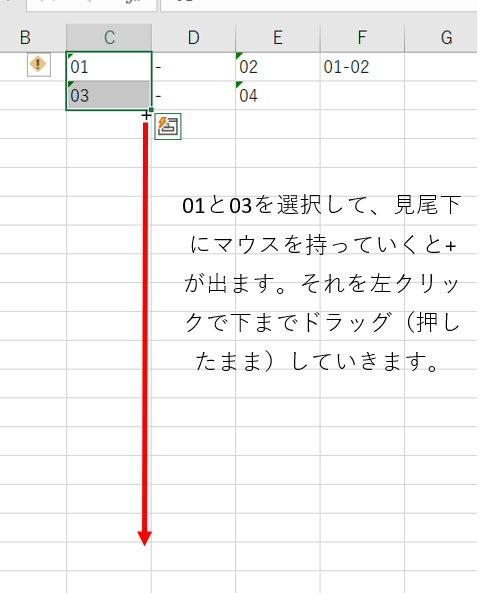
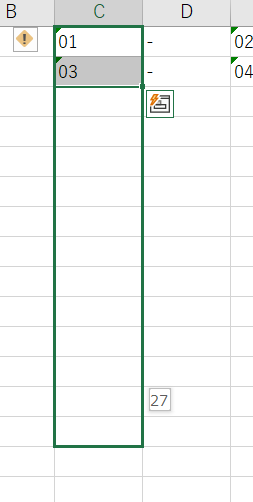
While you drag, a little tooltip near your cursor shows the current number, so drag down to 145.
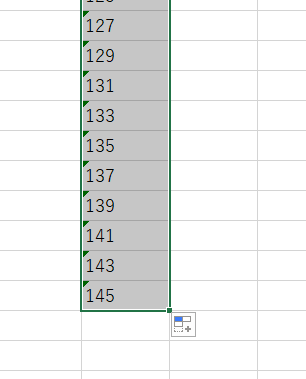
Then drag column E down to 146 the same way.
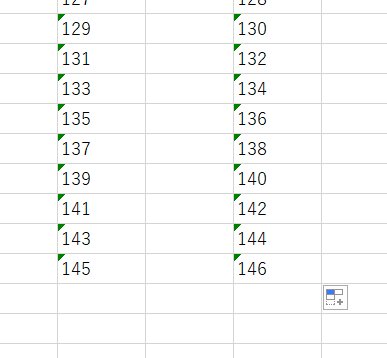
Done. Alternatively, you can just drag the minus sign (–) in the middle down, or double-click that same bottom-right square, and it’ll copy the same content all the way down to match the length of the column next to it.
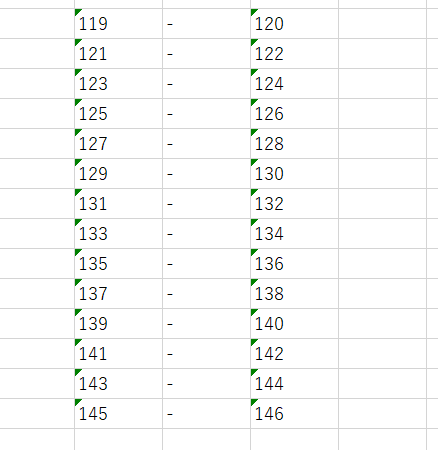
Done. Do the same with the formula: left-click and hold on the bottom-right corner of the cell with the formula, and drag straight down.
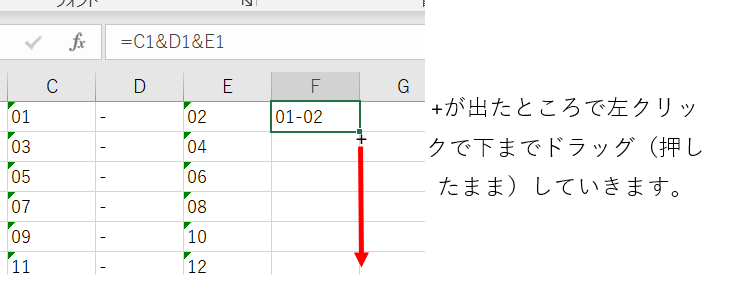
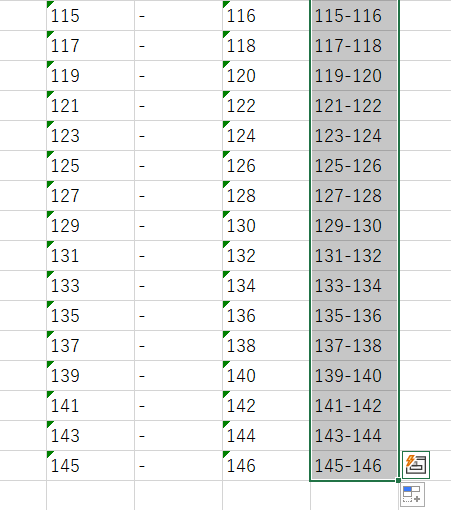
The formula is copied, and your folder names are ready. With everything still selected, right-click → Copy.
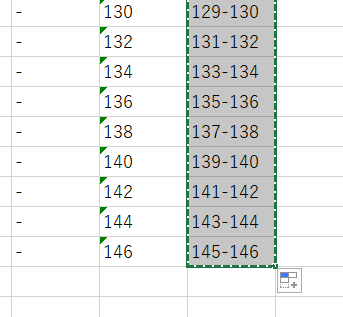
Once the border around the selection turns into a green dashed line, the copy is done.
Right-click cell B1 and choose “Paste Values.”
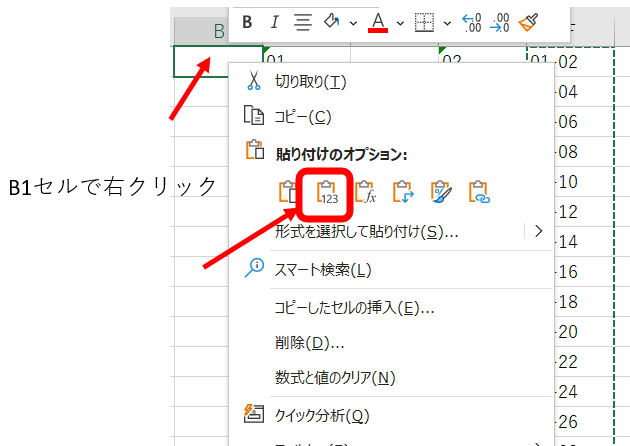
Among the paste options, the “123” icon is “Paste Values” — it pastes the values as plain text exactly as displayed, rather than the underlying formula.
Now that the folder names exist as plain values, delete the working columns C through E — you don’t need them anymore.
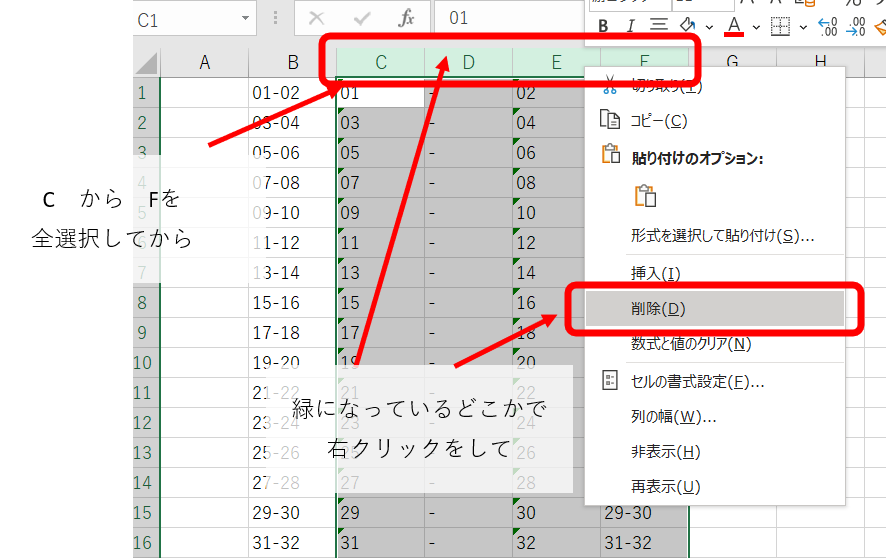
Column A gets just one thing: “md”
Last step in Excel: type md (in half-width characters) into column A, next to every row that has a folder name in column B, and drag it down the same way as before.
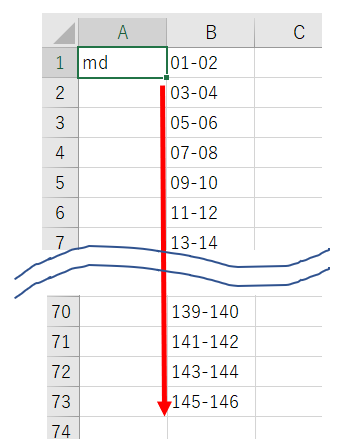
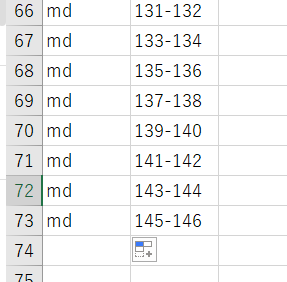
That’s it — prep work in Excel is done.
Save it as a CSV in your working folder on the desktop
Save the file into the “build” folder you made on the desktop earlier, giving it whatever name you like.
This time, set the file type to CSV (Comma delimited).


Now there’s a file called build.csv inside the “build” folder.
Change the .csv extension to .bat
Next, rename the CSV file you just made in Excel, changing its extension from .csv to .bat.
Right-click the file → Rename, and you can change it there.

A warning dialog will pop up. Go ahead and choose “Yes.”
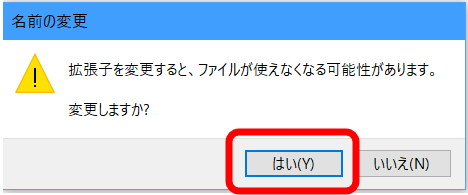
The icon changes.

If you don’t see the file extension
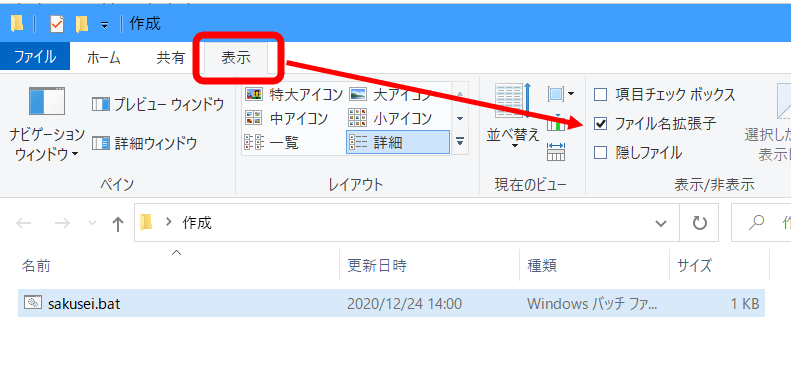
In the folder’s “View” tab, check the box for “File name extensions,” and the extension will appear.
Finally, double-click the .bat file
Last step: double-click the .bat file you just made — mine’s called “build.bat.”
Every folder from 01-02 through 145-146 gets created automatically.

73 folders, done in about 3 minutes
Making even one folder by hand is tiring enough — this method gets all 73 done in about 3 minutes.
Once you’re done, feel free to delete the .bat file — it’s served its purpose.
Does this only work for sequential numbers?
Not at all! It works for any names. Just type names like “Smith” or “Johnson” into the column you enter md next to, and it’ll create all those folders at once — no numbering required, no problem whatsoever.
Does this work on a Mac?
The .bat extension used here is a Windows-only command, so unfortunately this won’t work as-is on a Mac. Mac has its own equivalent using Terminal shell scripts, so I’ll dig into that at some point too.
With that, you’ve got some free time now.
What will you do with it? ( *´艸`)
I’ve written up plenty of other Excel time-saving tricks too — check those out if you’re interested.
✅ Today’s recap checklist
- ☐ Created one working folder on the desktop
- ☐ Opened Excel and changed columns C and E to “text” format
- ☐ Entered odd numbers in column C, a hyphen in column D, even numbers in column E, and combined them into folder names with a formula
- ☐ Copied column F’s formula and pasted values only into cell B1
- ☐ Entered “md” (half-width) in column A and dragged it down every row
- ☐ Saved as CSV and changed the file extension to .bat
- ☐ Double-clicked the .bat file to batch-create all the numbered folders
- ☐ Deleted the .bat file to tidy up
☕ Enjoyed this post?
I'm a Japanese blogger who spent 8 years relearning English from scratch.
If this post helped you, a coffee would mean a lot — thank you for reading!


Or just use the shortcut key!
Ctrl + C