
When I was using my iPhone 12 Pro, I only took my phone with me to the supermarket or convenience store in the morning.
I had my JAL Card in Apple Pay, and I paid with QUICPay (a Japanese tap-to-pay e-money service) with a quick tap. Except at JAL Card partner stores, paying with QUICPay on the phone still earned miles, so that was my routine for years.

But when I switched to the Xiaomi 17T Pro (Android), I couldn’t use QUICPay with my JAL Card anymore. I couldn’t add the card to Google Wallet (Google’s app for paying with cards on an Android phone). (;´Д`A
(My two-week review of the Xiaomi 17T Pro is here: Xiaomi 17T Pro review (in Japanese).)
So these days, I put my wallet in my pocket and pay everywhere—the supermarket, convenience stores, AEON—by tapping the physical card.
Actually, I already knew this before I bought the phone. But the urge to switch phones was stronger・・・.
I knew, but I still wondered, “Isn’t there some way around this?” So I looked into it.
In this post
・Why a JAL Card (Visa) won’t go into Google Wallet, so QUICPay doesn’t work on Android (with screenshots of the error)
・Why the Osaifu-Keitai QUICPay app didn’t work either(;´Д`A
・Which JAL Cards work on iPhone vs. Android (table)
・What I found when I looked for a way to pay by phone and still earn miles, and why I’m switching to JCB
This information was checked in November 2026. Card support can change, so please check the JAL Card official site for the latest.

- 1 The short answer: a JAL Visa card can’t be added to Google Wallet
- 2 What happened when I tried to add it to Google Wallet
- 3 Can you use JAL Card QUICPay through Osaifu-Keitai on Android?
- 4 iPhone vs. Android: different JAL Cards work for phone payments
- 5 How I paid on my iPhone vs. now
- 6 I want miles too: looking for a way around it
- 7 At JAL Card partner stores, pay with the physical card
- 8 In the end, I decided to switch to JAL・JCB
- 9 With JCB, I can take the train with my phone too
- 10 What about abroad? JCB apparently doesn’t work in London
- 11 Summary: what changes is “which cards you can use”
The short answer: a JAL Visa card can’t be added to Google Wallet
Let me start with the conclusion.
My card is a JAL CLUB-A Gold (Visa).
According to the JAL Card FAQ, only these three JAL Cards support Google Pay (paying through Google Wallet):
- JAL・JCB Card (since January 25, 2024)
- JAL Card OP Credit (since January 25, 2024)
- JAL Diners Card (since May 14, 2025)
For the others, including JAL・Visa and JAL・Mastercard, support is “undecided at this time.”
In short, it wasn’t that I was doing something wrong—the card simply can’t be added.
What happened when I tried to add it to Google Wallet
I tried it anyway.
In the Google Wallet app, when you open “Add to Wallet,” the “Credit or debit card” option says “Pay in stores that accept QUICPay, iD, and tap to pay.” (My phone is set to English.)
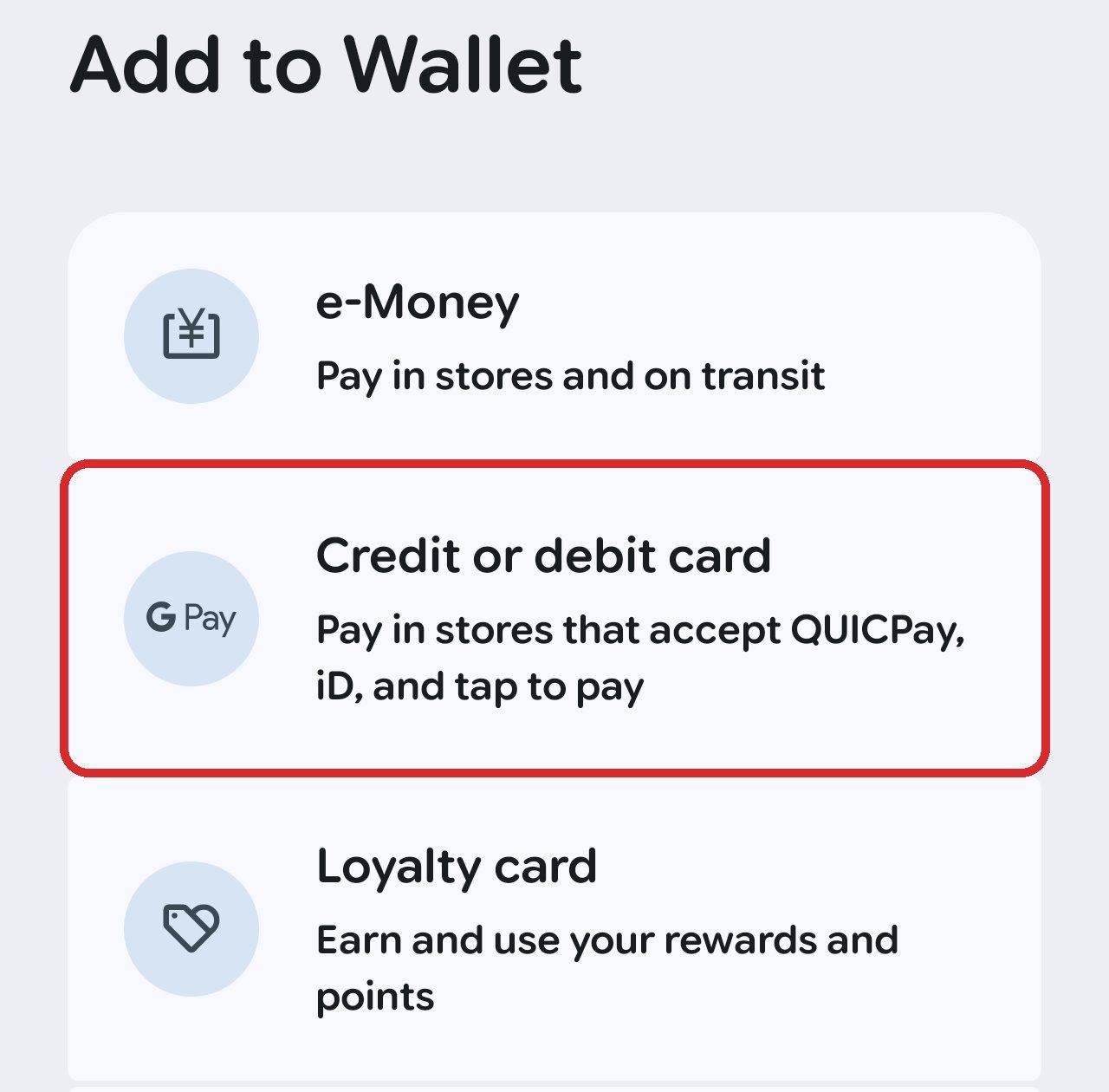
When I tried to add my JAL Card from there, this is what I got.
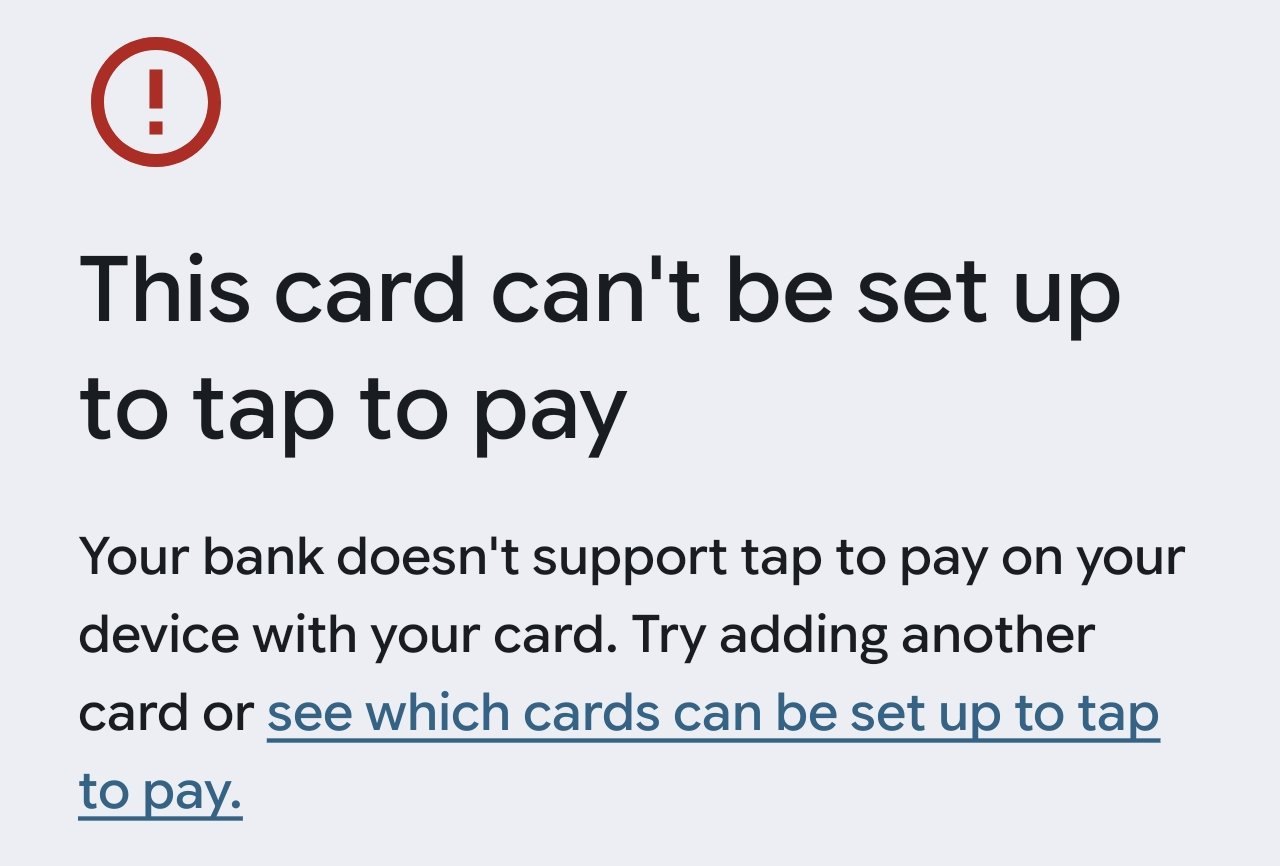
“This card can’t be set up to tap to pay.”
Below that, it says, “Your bank doesn’t support tap to pay on your device with your card. Try adding another card…”
No luck after all (ノД`)
By the way, the bottom of this screen also said, “This card is still saved in Wallet so you can pay online and across Google services.” So it seems only tapping to pay in stores is blocked.
Can you use JAL Card QUICPay through Osaifu-Keitai on Android?
Next, I tried the Osaifu-Keitai app (a tap-to-pay service on phones that’s only used in Japan).
It has “QUICPay” in it. I used QUICPay on my iPhone, so I thought, “Maybe this will work?”
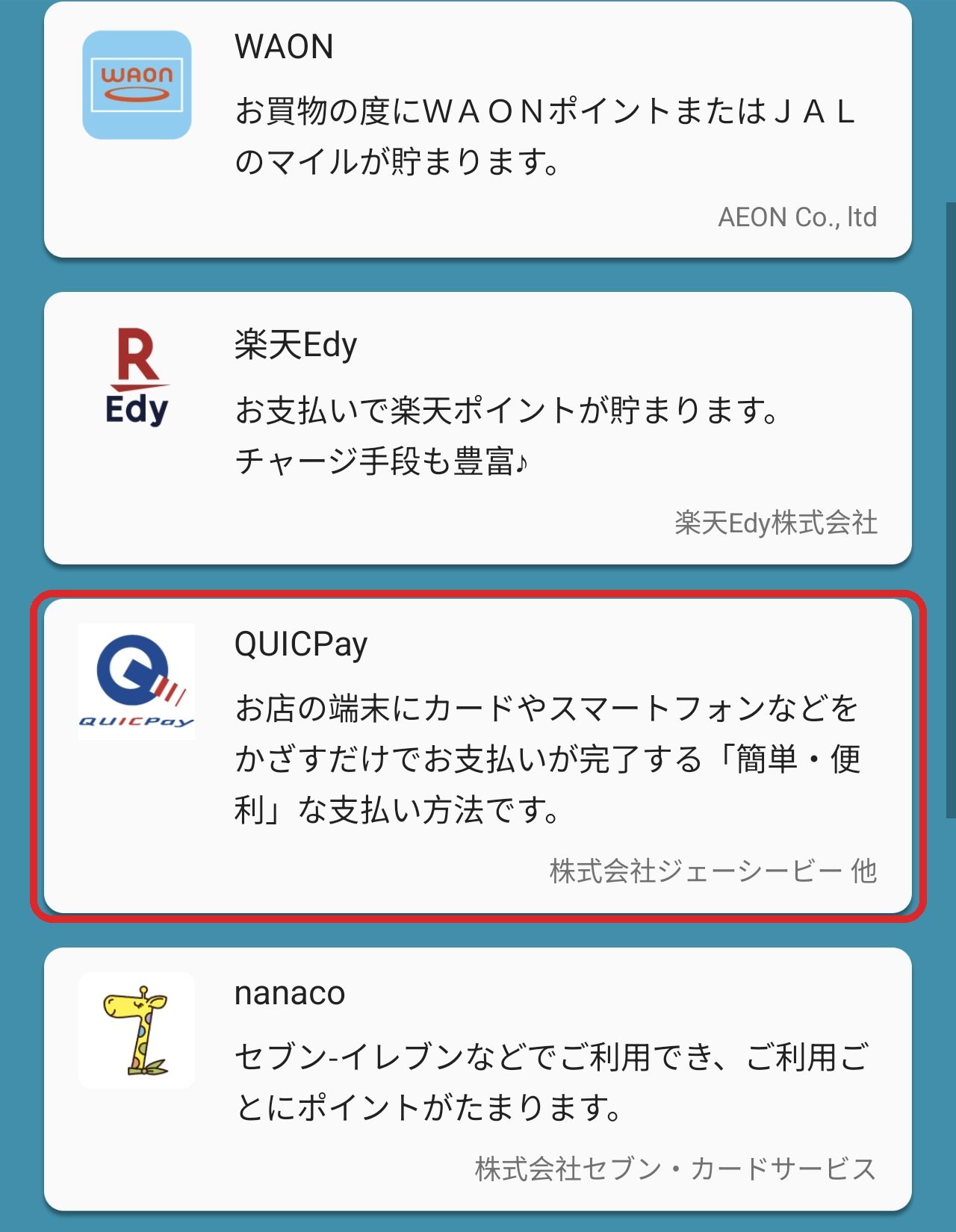
When I opened QUICPay, the steps were:
- Install the “Google Wallet” app on your Android phone
- Add a QUICPay-compatible card to “Google Wallet”
- Hold your phone over the reader at a store
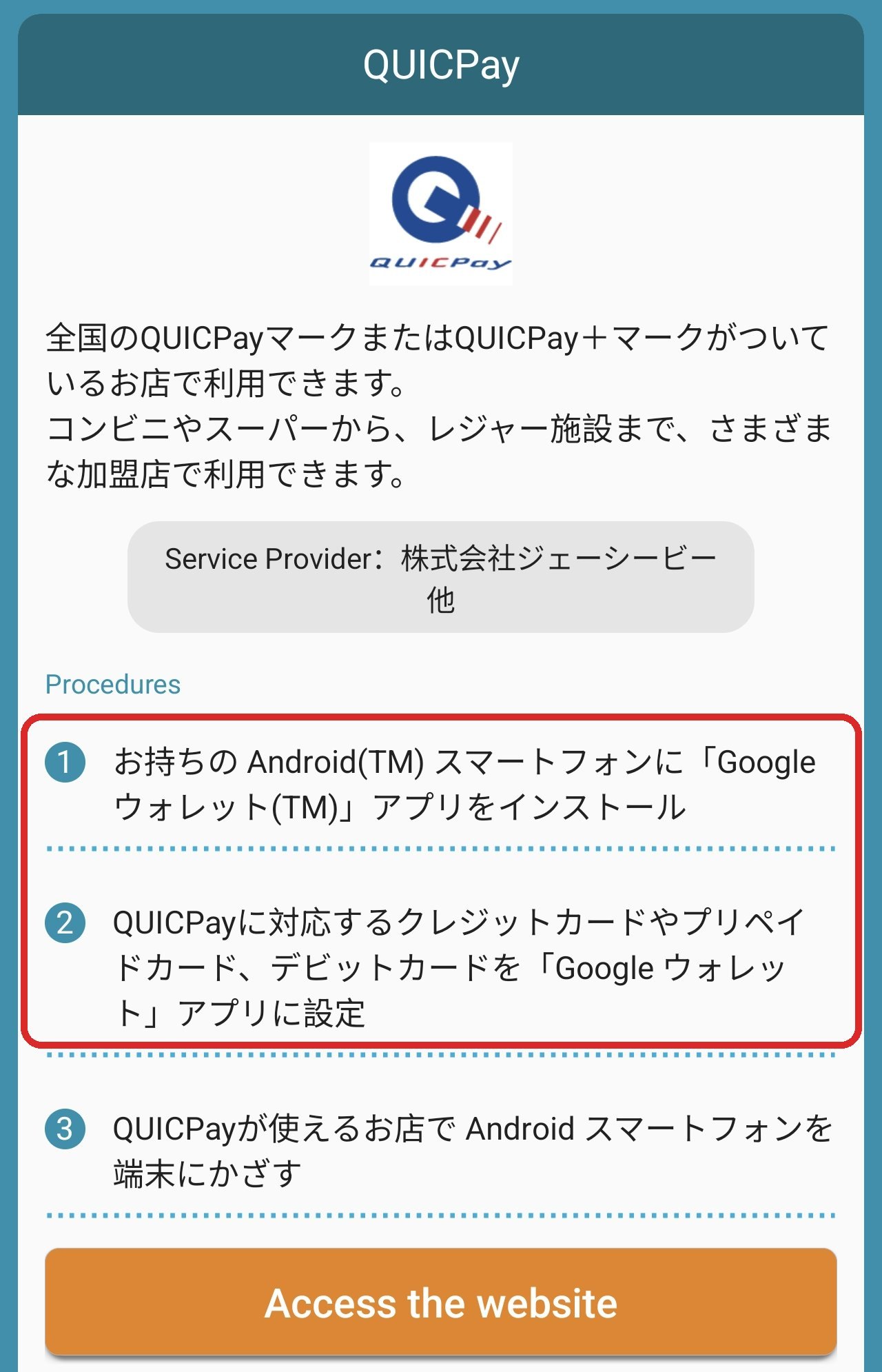
Even when I tapped the button and went to the official QUICPay website, it said, “Download the Google Wallet app and set up your card.”
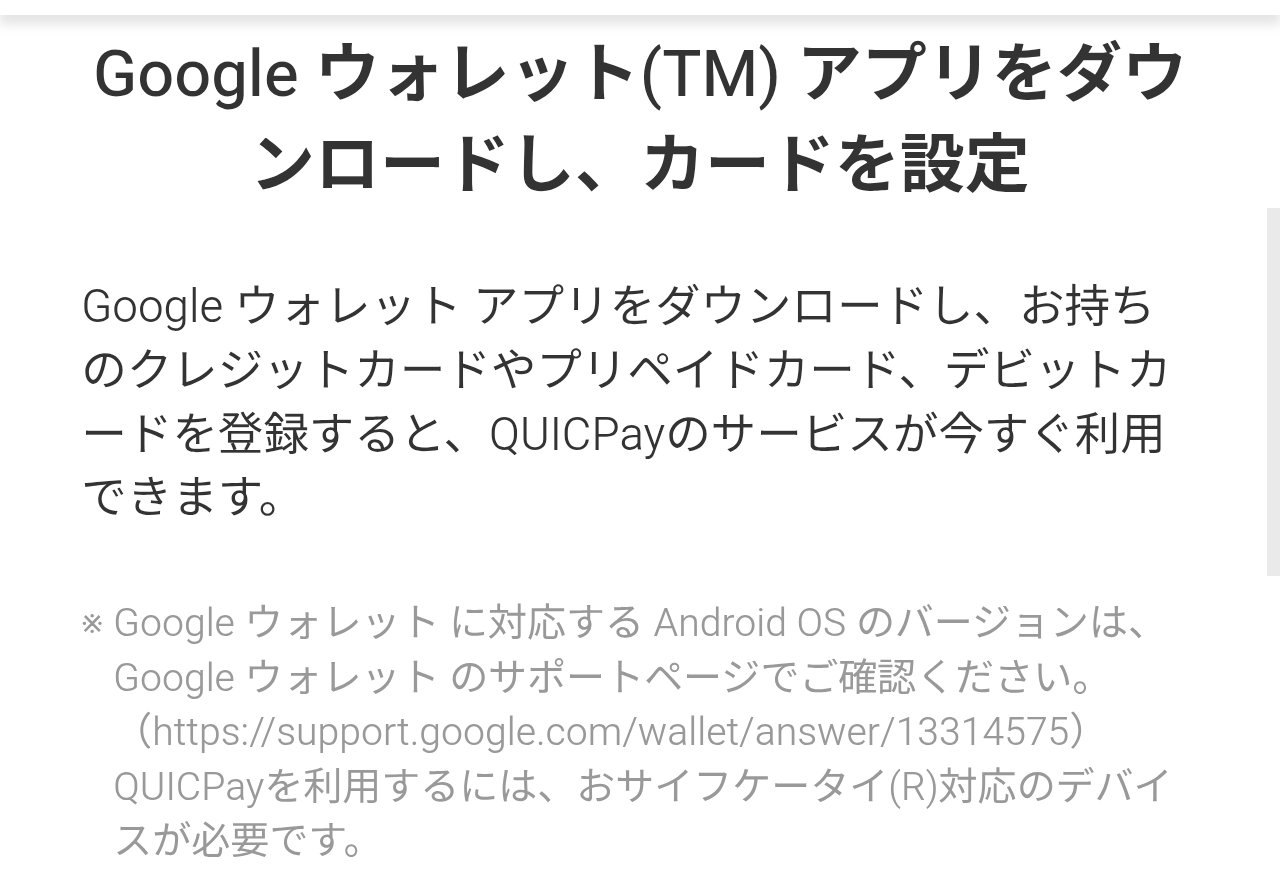
In the end, it brought me right back to Google Wallet・・・・
When I looked into it, there used to be another way on Android: each card company’s “QUICPay Mobile” app for Osaifu-Keitai. But new sign-ups and renewals ended on March 31, 2024.
In short, the only way to use QUICPay on Android now is through Google Wallet. If a card can’t go into Google Wallet, it can’t be used with QUICPay either.
iPhone vs. Android: different JAL Cards work for phone payments
Here’s the interesting part: the iPhone.
A JAL・Visa card can’t go on an Android phone, but it can be added to Apple Pay on an iPhone. It only works as QUICPay, though (not as Visa contactless).
Here’s a summary based on JAL Card’s official information:
| JAL Card type | iPhone (Apple Pay) | Android (Google Wallet) |
|---|---|---|
| JAL・JCB | ○ | ○ |
| JAL・Visa | ○ (QUICPay only) | ✗ Undecided |
| JAL・Mastercard | ○ | ✗ Undecided |
| JAL Diners | ○ (QUICPay only) | ○ |
| JAL Card OP Credit | ○ | ○ |
| JAL Card Suica | ○ | ✗ Undecided |
| JAL Card TOKYU POINT ClubQ | ○ | ✗ Undecided |
| JAL American Express | Undecided | ✗ Undecided |
Apple Pay supports far more JAL Cards.
Both iPhone and Android can pay by phone. What changes is “which cards you can use.”
I bought the phone knowing this, so I’m fine with it. But if you pay with your phone every day, it could be a big deal. If you’re thinking about switching from iPhone to Android, check whether the card you use every day can go into Google Wallet before you buy.
How I paid on my iPhone vs. now
Even on my iPhone, I couldn’t pay for everything with my phone. Apple Pay only lets a JAL・Visa work as QUICPay, so at stores without QUICPay, I paid with the physical card.
| iPhone 12 Pro (until Oct 2026) | Xiaomi 17T Pro (now) | |
|---|---|---|
| Stores with QUICPay | Tap the iPhone | Tap the physical card |
| Stores without QUICPay | Tap the physical card | Tap the physical card |
| What I carry | Often just my phone | My wallet in my pocket, every time |
After switching to Android, the number of times I can pay with my JAL Card (Visa) on my phone dropped to zero.

By the way, after buying the phone, I tried adding my other Visa cards to Google Wallet.
The only one that worked was the Visa debit card that comes with my PayPay Bank cash card. The Visa debit from docomo’s bank (docomo SMTB Net Bank, formerly SBI Sumishin Net Bank) couldn’t be added.
With the PayPay Bank debit card, I could pay by phone. But I want to earn miles, so for now I pay by tapping the physical JAL Card.
I want miles too: looking for a way around it
I thought, “Isn’t there a loophole?” So I also looked at loading money from my JAL Card (charging) and then paying by phone with that balance.
| Method | Tap to pay by phone? | JAL Card miles |
|---|---|---|
| JAL Pay (JAL’s phone payment) | ○ Works in Google Wallet | ✗ Charging from a JAL Card doesn’t earn miles |
| Mobile Suica, PASMO, ICOCA, TOICA, etc. | ○ | ✗ Charging doesn’t earn miles |
| Rakuten Edy, nanaco | ○ | ✗ Charging doesn’t earn miles |
| au PAY | ○ (au PAY Prepaid Card) | ✗ Charging doesn’t earn miles |
| Rakuten Pay | ✗ (pay with a QR code) | △ Not clearly stated officially |
JAL Card keeps adding these kinds of charges to the “no shopping miles” list. Charging TOICA (JR Central’s transit IC card) also stopped earning miles from the October 2026 billing.
In short, almost every “load money first” method is excluded from miles.
“So there’s really no other way around it, huh.” That’s where I gave up (ノД`)
Even charging JAL Pay—from the same company—doesn’t count・・・・
By the way, Rakuten Pay lets you use credit cards other than Rakuten Card directly, so it counts as a card payment, not a charge. It might earn miles. But you pay by showing a QR code, not by tapping, so I’m not using it for now.
At JAL Card partner stores, pay with the physical card
Here’s one more thing worth knowing.
JAL Card has partner stores (where you earn double miles when you pay with a JAL Card). But if you pay with Apple Pay, QUICPay, Google Pay, or a code payment at a partner store, you don’t get double miles, except at some stores (JAL Card official).
So at partner stores, you need to pay with the physical card. I pay with the physical card at partner stores too.
There are many partner stores and they change, so please check JAL Card’s official partner store page.
JAL Card partner stores (JAL Card official, in Japanese)
In the end, I decided to switch to JAL・JCB
At first, I thought, “A Visa JAL Card is best. It works in Japan and abroad.”
But after looking into it, I decided to switch my card for use in Japan to JAL・JCB and add it to Google Wallet.
According to JCB’s official site, when you add a JCB card to Google Wallet, it works both as QUICPay and as JCB contactless. On my iPhone, the JAL・Visa only worked as QUICPay, so I think I’ll be able to use it at more stores than before, which should be more convenient.
Here’s what I found out about switching (JAL Card official):
- Going from Visa to JCB isn’t a “switch.” You apply for a new card and cancel the current one yourself
- If you enter your JMB membership number when applying, your miles carry over as they are
- The annual fee you’ve paid for the current card isn’t refunded
- From the second year, the annual fee is charged “two months after the card’s expiration month”
My card expires in May, so the annual fee is charged every July. That’s why I plan to apply for the JAL・JCB around March 2027 and cancel the Visa by the end of April. That way, I won’t pay the next annual fee.
Oh, and of course, the card number changes, so I’ll have to update every service I pay for monthly by card. (;´Д`A
Also, I’ll drop the Gold and go with a JAL・JCB CLUB-A Card (¥11,000 a year) plus Shopping Mile Premium (¥4,950, 1 mile per ¥100).
That’s ¥15,950 in total, ¥1,650 cheaper than my current CLUB-A Gold (¥17,600). What I lose is mainly the airport lounge access in Japan and the flight delay insurance. I think that’s fine for me.
With JCB, I can take the train with my phone too
Right now, I take my card out of my wallet and tap it at the ticket gate. But once it’s in Google Wallet, it seems I can just hold my phone over the gate. S-so convenient♪( ´▽`) I want to try it・・・
When I looked into it, more trains in the Tokai area where I live now accept credit card tap-to-pay.
- Kintetsu: Since October 29, 2024, you can ride all lines (except cable cars) with tap-to-pay. Visa, Mastercard, JCB, American Express, Diners, Discover, and UnionPay are accepted, and you can ride with a phone that has the card added
- Nagoya City Subway: Since September 3, 2026, at all stations (73 stations at the gates, the rest at the counter). JCB is accepted too. You can also travel to and from Meitetsu stations that support tap-to-pay
I couldn’t find tap-to-pay gates on JR Central’s conventional lines.
With a JAL・JCB in Google Wallet, it looks like I can ride Kintetsu and the Nagoya subway just by holding up my phone.
Shopping and trains with just one phone. That really is convenient♪( ´▽`)

What about abroad? JCB apparently doesn’t work in London
There’s just one problem.
I’m going on a solo trip to the UK next summer, and it seems the London Underground and buses don’t accept JCB (based on travel guide sites; Transport for London’s official site doesn’t list which brands it accepts).

If I cancel the Visa in April, I’ll only have JCB for the UK in August.
If I keep the Visa until after the trip, I’ll pay the Gold annual fee (¥17,600) again in July. I want to avoid extra annual fees, so I plan to get a separate no-annual-fee card for use abroad.
I basically want to stick to one credit card, so I first looked at debit cards.
| PayPay Bank Visa debit (I have it) | Wise debit card | |
|---|---|---|
| Google Wallet | ○ Already added | ✗ Cards issued in Japan aren’t supported (Apple Pay works) |
| Extra cost when used abroad | 3.08% (stated on the official site) | About 0.3–0.7% conversion fee (from comparison sites) |
| Points | None | None |
| Annual fee | ¥0 | ¥0 (¥1,200 to issue the card) |
I’d heard Wise is good for use abroad, and its website even had an image that looked like phone payments. But according to Wise’s help pages, cards issued in Japan can’t be added to Google Pay (as of October 2026).
Debit cards also have a weak point: if you pay a hotel deposit with a debit card, the money in your account can be held for a while.
The fees are on the high side too, so I think I’ll just bring a debit card as a backup for emergencies.
So for use abroad, I’m now looking for a no-annual-fee credit card to use when I travel—ideally one that earns miles, or points that can be converted into miles.
I’ll update this post once I decide.
Summary: what changes is “which cards you can use”
- JAL・Visa (and JAL・Mastercard) can’t be added to Google Wallet on Android (“undecided” according to JAL Card, as of November 2026)
- QUICPay on Osaifu-Keitai also goes through Google Wallet, so it doesn’t work either
- On an iPhone, Apple Pay accepts a JAL・Visa (QUICPay only). Both phones can pay by phone—what changes is which cards you can use
- “Load money first” workarounds almost never earn miles
- At partner stores, pay with the physical card to get double miles
- I plan to switch to JAL・JCB around March 2027 and add it to Google Wallet. I’m still looking for a card to use abroad
Once I switch to JCB, I’ll add what it was like to put it in Google Wallet and ride the train with my phone ♪( ´▽`)

References
- Does JAL Card support Google Pay? (JAL Card FAQ, in Japanese)
- Does JAL Card support Apple Pay? (JAL Card FAQ, in Japanese)
- Using Apple Pay (JAL Card official, in Japanese)
- JAL Card partner stores (JAL Card official, in Japanese)
- Additional uses excluded from shopping miles (JAL Card official, in Japanese)
- “JAL Pay” now supports Google Pay (JAL official, in Japanese)
- Google Pay (JCB official, in Japanese)
- QUICPay Mobile ends new issuance and renewals in March 2024 (ASCII, in Japanese)
- Payment methods you can set (Rakuten Pay help, in Japanese)
- Riding with tap-to-pay (Kintetsu official, in Japanese)
- Tap-to-pay at all Nagoya City Subway stations (K-tai Watch, in Japanese)
- Google Pay (PayPay Bank official, in Japanese)
- Wise Card in Japan (Japan Travel Kit)
☕ Enjoyed this post?
I'm a Japanese blogger who spent 8 years relearning English from scratch.
If this post helped you, a coffee would mean a lot — thank you for reading!


Leave a Reply