
When I switched from an iPhone to the Xiaomi 17T Pro (Android), I set up Obsidian (a note-taking app) the same way I had on my iPhone.
I keep everything in Obsidian—my blog ideas, my drafts and the screenshots I use in posts. I also have it working together with Claude (an AI).
One day, I opened the gallery to look at some photos I’d taken with my camera, and・・・
There they were: screenshot after screenshot that looked familiar. ( ゚д゚)
The images I’d made for my blog and the screenshots I’d sent to my Mac were all mixed in with my camera photos.
To get straight to the point, when you use Obsidian on Android, the images in your vault (the folder where Obsidian keeps your notes and images) show up in the gallery. This never happened on my iPhone.
What’s more, if you delete them in the gallery, they’re also deleted from Obsidian and from the Mac you sync with.
I didn’t delete anything. I just made one folder named .nomedia, and that hid them from the gallery. No restart needed—it worked right away.
In this post
・Why images show up in the gallery when you use Obsidian on Android (and how it differs from iPhone)
・What happens if you delete them in the gallery? (They disappear from Obsidian and your Mac too)
・Why you can’t find a setting for this in Obsidian
・How to hide them from the gallery with .nomedia without deleting anything (Xiaomi, a few minutes)

- 1 Using Obsidian on Android filled my gallery with images
- 2 Why didn’t this happen on my iPhone?
- 3 If you delete them in the gallery, are they deleted from Obsidian too?
- 4 I couldn’t find a setting for this in Obsidian
- 5 I hid them from the gallery with .nomedia, without deleting anything
- 6 What I think after switching from iPhone to Android
- 7 Summary: before you delete anything in the gallery, use .nomedia
Using Obsidian on Android filled my gallery with images
I went to look at my camera photos and found familiar screenshots
I was just trying to look at photos I’d taken with my camera in the gallery.
When I opened it, familiar images kept coming, one after another—screenshots and all sorts of images I’d made.
I wondered what they were for a moment, but I figured it out right away: they were images I’d made in Obsidian and screenshots I’d sent to my Mac with Quick Share (Android’s feature for sending files to nearby devices).
Oh, I see, Obsidian is syncing them to my phone.
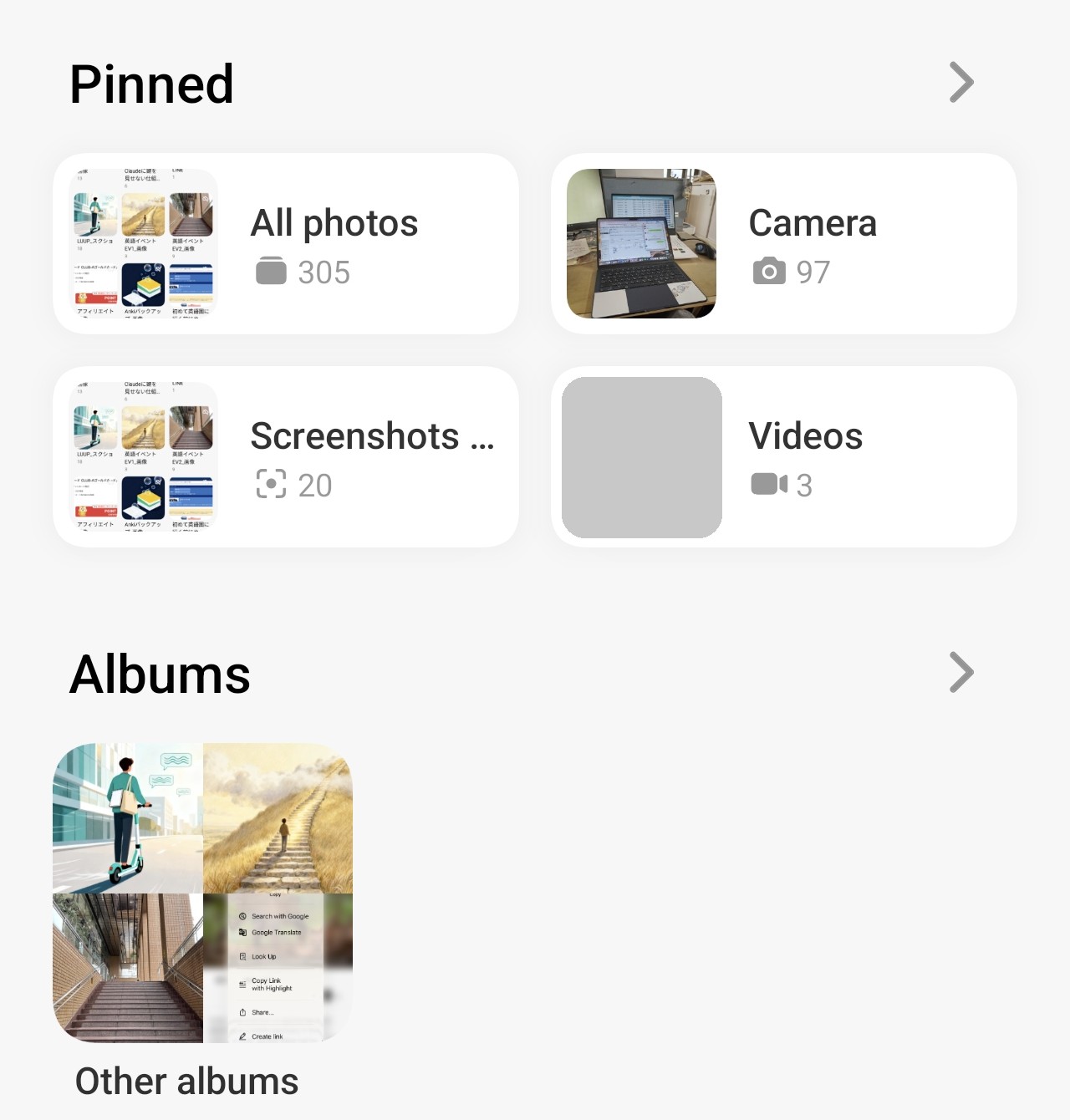
Look at these numbers. “All photos” showed 305, but only 97 were taken with the camera. More than half were Obsidian images.
Opening “Other albums” made it even clearer.
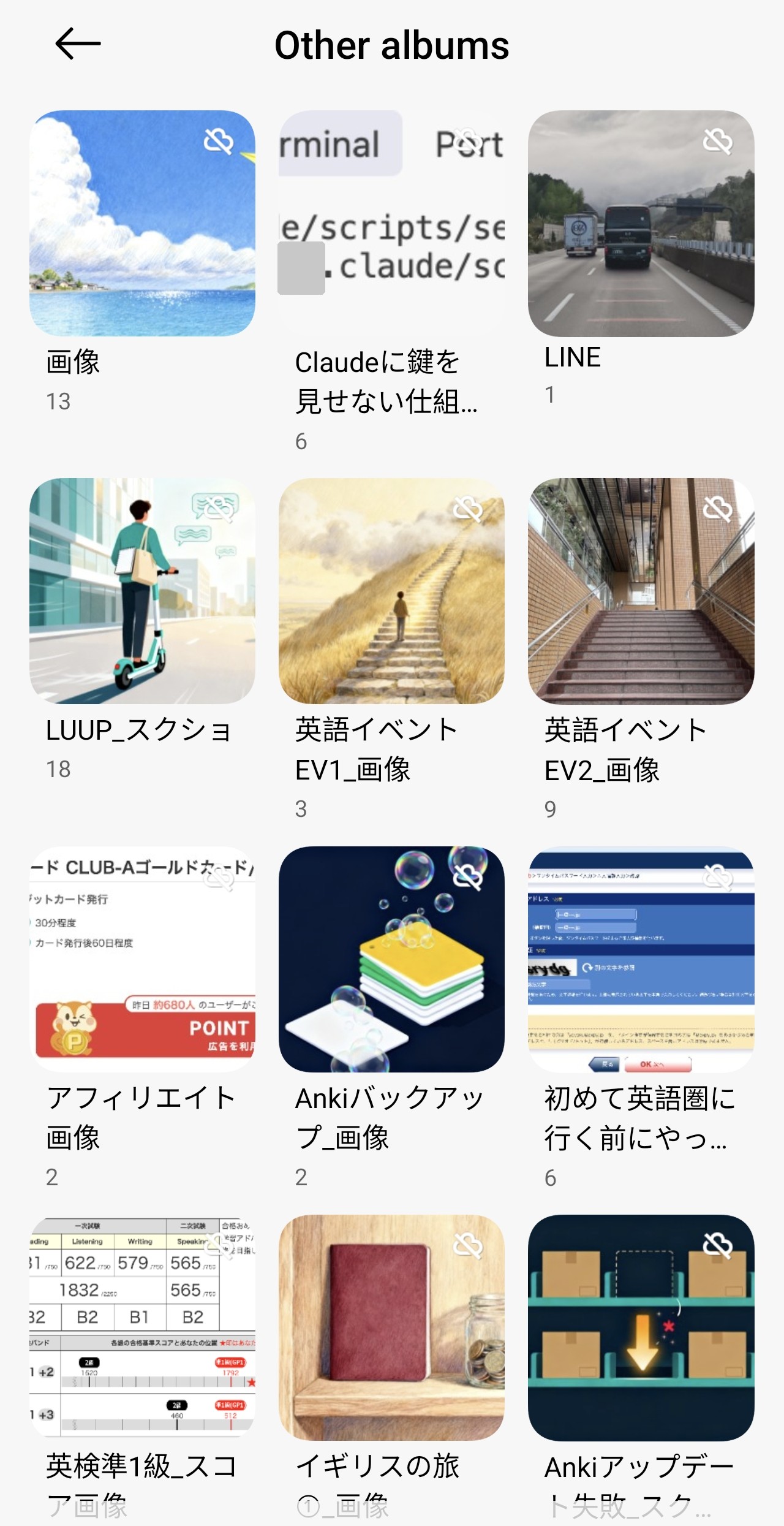
LUUP_スクショ (LUUP screenshots), 英検準1級_スコア画像 (Eiken Pre-1 score images), イギリスの旅①_画像 (UK trip ① images)…… The folders I keep for each blog post were lined up as albums.
When I counted on my Mac, there were about 250 images for my blog. Since they all got mixed together, I wanted to keep them separate from my camera photos.
How I sync Obsidian
By the way, I sync Obsidian using the Synology at my home (a NAS: a storage box you keep at home that connects to the internet).
- Mac: the vault folder is synced with Synology Drive (Synology’s sync app)
- Phone: synced with Remotely Save (an Obsidian plugin) using WebDAV (a way to read and write files on the NAS over the internet)
I just set up the Xiaomi the same way as my iPhone. I wrote about how to set it up in an earlier post: Obsidian on iPhone with WebDAV and Remotely Save (in Japanese).
Why didn’t this happen on my iPhone?
That was my first question. The same images should have been on my iPhone too, but they never showed up in the Photos app.
When I looked into it, it seems iPhone and Android store app files differently.
| iPhone | Android (Xiaomi) | |
|---|---|---|
| App files | Each app keeps its files in its own box | Apps share the phone’s storage |
| What shows up in the photo app | Only photos you took with the camera or saved | Images from any folder are picked up and turned into albums |
| Images in your Obsidian vault | Don’t show up in the Photos app | Show up in the gallery |
On my phone, the vault was in Documents/Obsidian/My brain (I’ll explain how to check the location in the steps below). This is treated like any normal folder, so the gallery was picking them up, as if to say, “Oh, there are images here.”
Oh, and by the way, when you create a vault in Obsidian, you apparently also have the option to put it in “app storage” (according to Obsidian’s official help). But then the vault is deleted if you delete the app, and recreating my vault now would be a lot of work. I thought, “As long as they’re hidden, that’s good enough,” so I didn’t recreate it.

If you delete them in the gallery, are they deleted from Obsidian too?
I left them alone instead of deleting them
I wanted to keep them separate from my camera photos. But was it OK to delete them from the gallery?
That’s where I stopped. If I deleted them from my phone, wouldn’t they disappear from Obsidian too?
I’ve done a lot with syncing on my Synology before, so that thought came to mind naturally. Oh, and by the way, I’ve also written about the time Synology and Obsidian syncing clashed and my RSS notes disappeared: n8n × Synology × Obsidian RSS, Part 3 (in Japanese).
So for the time being, I left them alone.
I looked it up, and yes, they get deleted
I had Claude look it up, and sure enough, they do get deleted.
- What’s lined up in the gallery isn’t a copy, but the actual images in your vault
- If a file that was synced before is missing from your phone, Remotely Save also deletes it from the server (Synology) on the next sync (according to the Remotely Save documentation)
- Once it’s gone from the server, the images for my blog on my Mac also disappear through Synology Drive
So if you delete them in the gallery, they disappear from Obsidian and from your Mac too.
So deleting them really would have deleted them. I’m glad I didn’t_| ̄|○
If you delete images or albums in the gallery, the actual images in your vault are deleted, and they also disappear from wherever you sync (your NAS or computer). Even if you want to tidy up, please don’t delete them in the gallery.
I couldn’t find a setting for this in Obsidian
I thought Obsidian might have a setting to keep images out of the gallery, so I checked Obsidian’s settings. But I couldn’t find anything like that.
I wondered if I’d missed it, but I hadn’t.
- Obsidian has no setting to keep images out of the gallery
- There’s even a request on the Obsidian forum asking for this to be done automatically on Android
- Someone has made a separate plugin that does it (Gallery Excluder)
So that’s how it is・・・.
If you looked through the settings and couldn’t find it, don’t worry—you didn’t miss it, lol
By the way, that plugin is a personal plugin with only about 550 downloads so far (as of November 2026), and all it does is add the .nomedia I’ll explain next. You can make one by hand, so I didn’t install it this time.
I hid them from the gallery with .nomedia, without deleting anything
What is .nomedia?
.nomedia is Android’s marker that says, “Don’t show the images in this folder.”
If a folder contains something named .nomedia, that folder and all the folders under it stop showing up in photo apps like the gallery and Google Photos.
- The images aren’t deleted (you can still see them in Obsidian)
- Syncing doesn’t stop (more on this later)
- They’re only hidden from photo apps like the gallery
Make it on your phone, not your Mac
This part confused me too. At first, I thought I had to make the folder on my computer.
But you make it on your phone.
Remotely Save is designed not to sync files or folders whose names start with “.” (a dot) (according to the Remotely Save documentation). So even if you make it on your Mac, it won’t reach your phone.
And the other way around, a .nomedia made on your phone won’t go to your Mac either. Nothing changes on the Mac side, so you can make it without worrying♪( ´▽`)
Steps (Xiaomi 17T Pro, HyperOS)
I’ll write it exactly the way I did it. These are HyperOS (the Android on Xiaomi phones) screens, and my phone is set to English, so the screens are in English.
① Check where your vault is
In the gallery, open a photo from an album that has Obsidian images (for me, LUUP_スクショ) and look at “Detail info.” “Local path” shows where it’s saved.
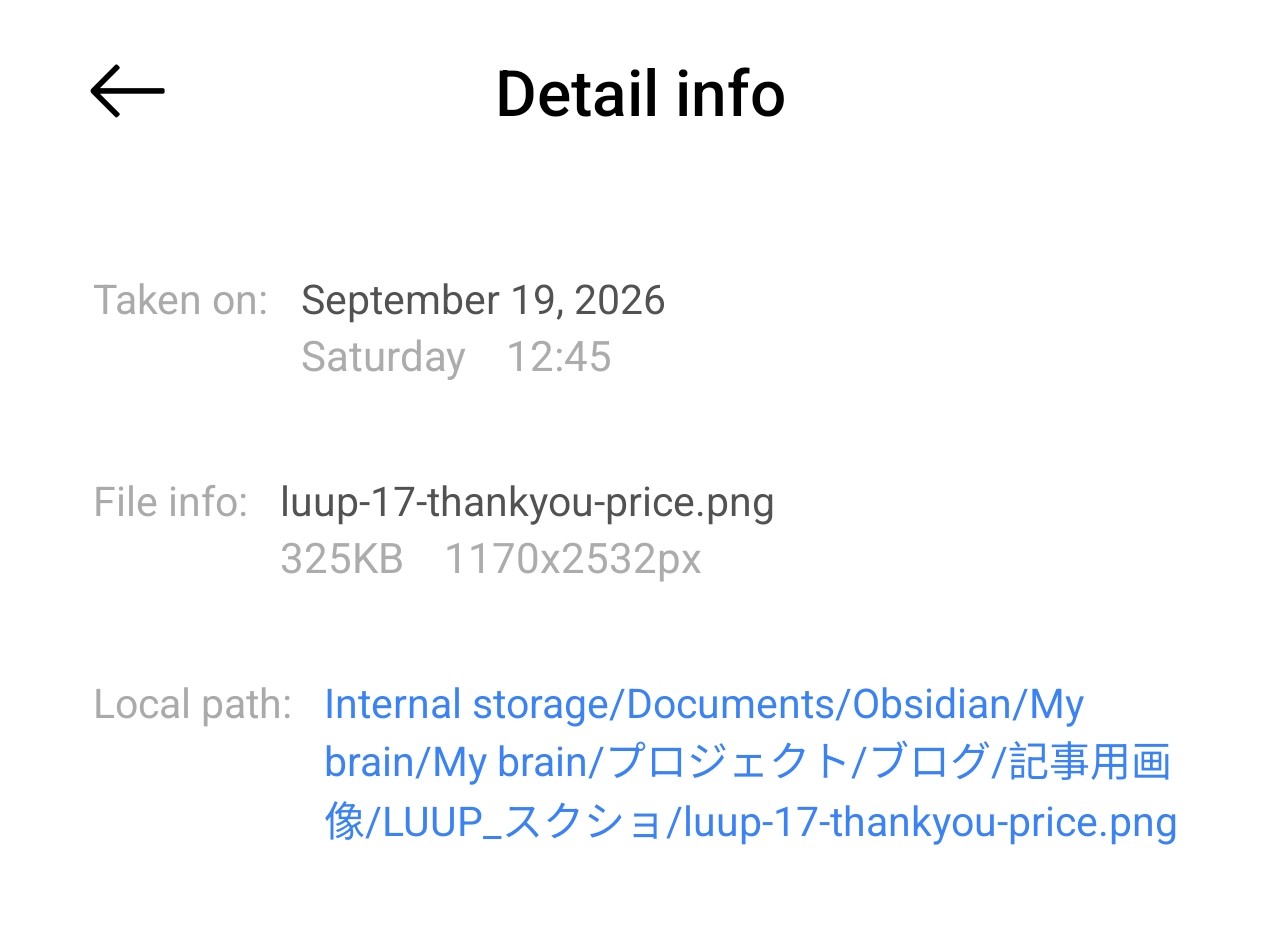
On my phone, there was another My brain inside My brain. The location may be a little different for each person, so checking here saves you from getting lost.
② Open your vault in File Manager
Open Xiaomi’s “File Manager” app. The first time you open it, you’ll see the terms of use, so tap “Agree.”
Open Internal storage → Documents → Obsidian → My brain.
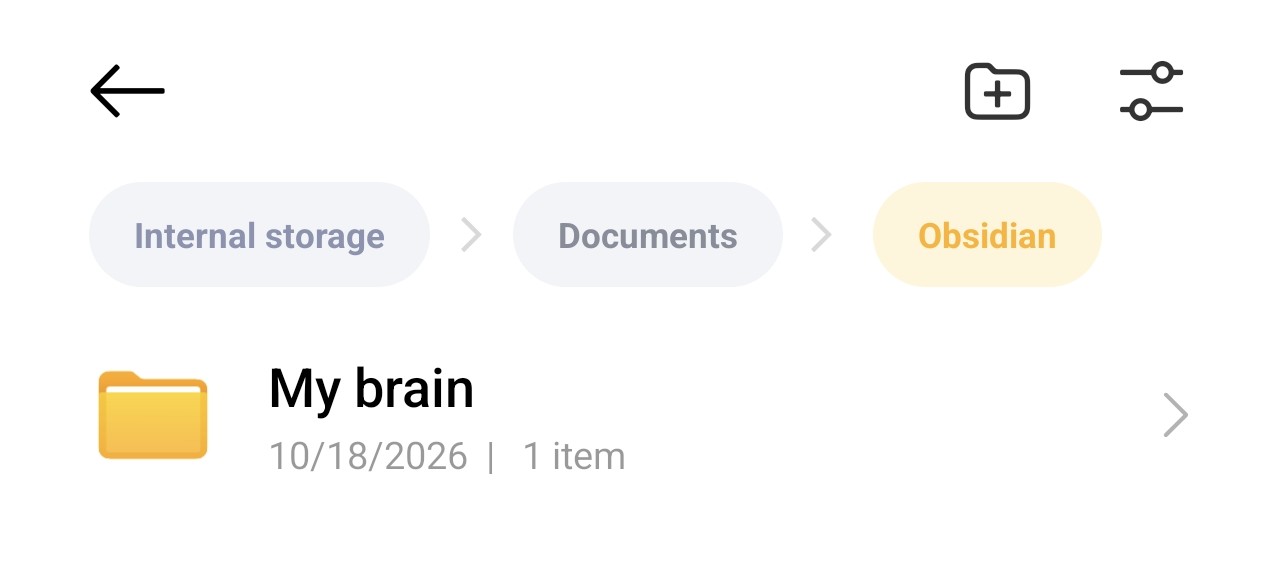
③ Make a “.nomedia” folder at the top level of your vault
Once you’ve opened the folder where your vault’s contents are listed (like 00_なんでもボックス and Claude), tap the “folder with a plus” icon in the top right → “Create folder.” Name it .nomedia and tap “OK.”
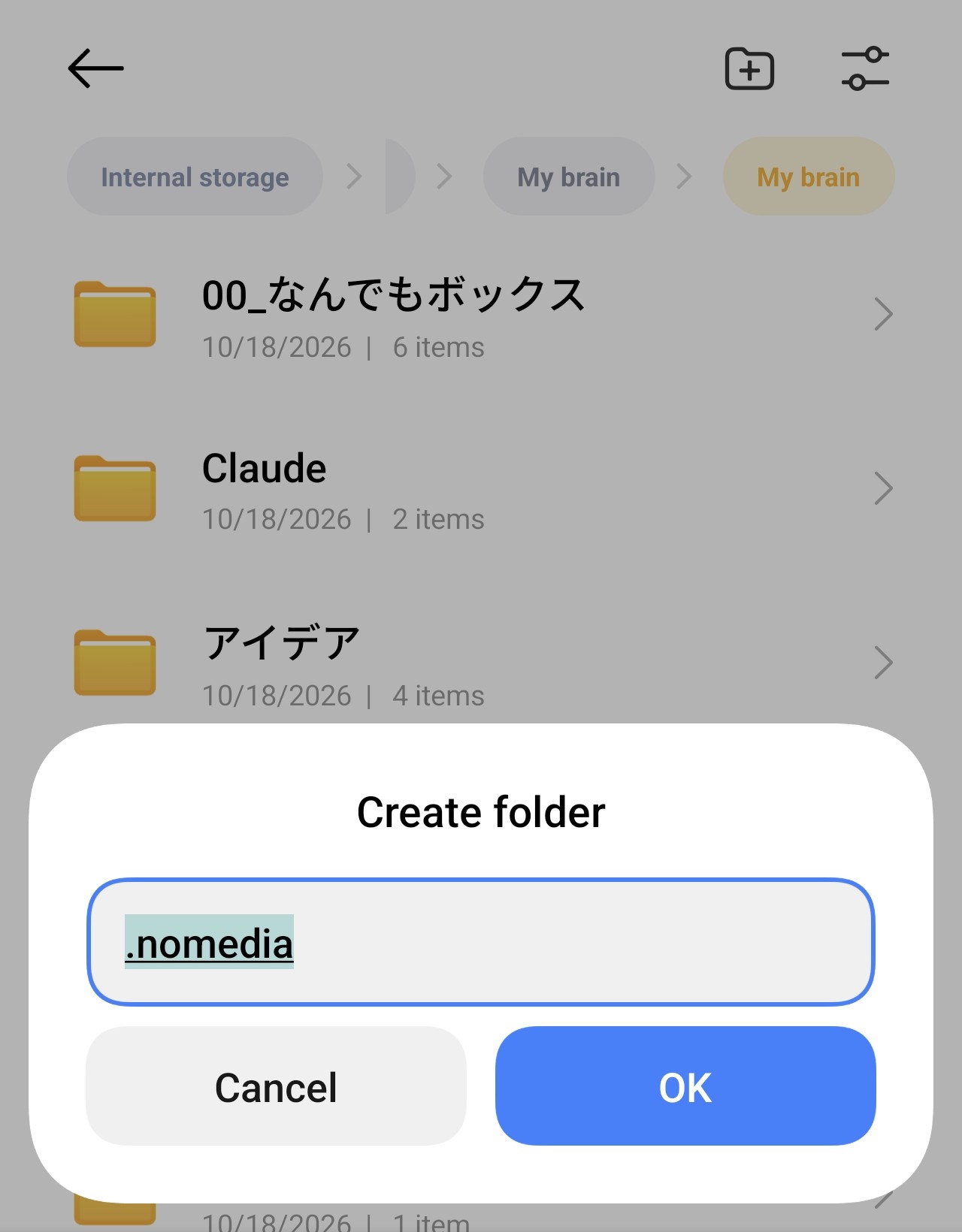
Normally you’d add an empty file named “.nomedia,” but Xiaomi’s File Manager couldn’t create new files (only folders). Android apparently checks whether something named .nomedia exists, so I used a folder instead. It worked on my 17T Pro.
④ Tap “OK” on the “it will be hidden” message
You’ll see “The file will be hidden after you change its extension.” Tap “OK.”
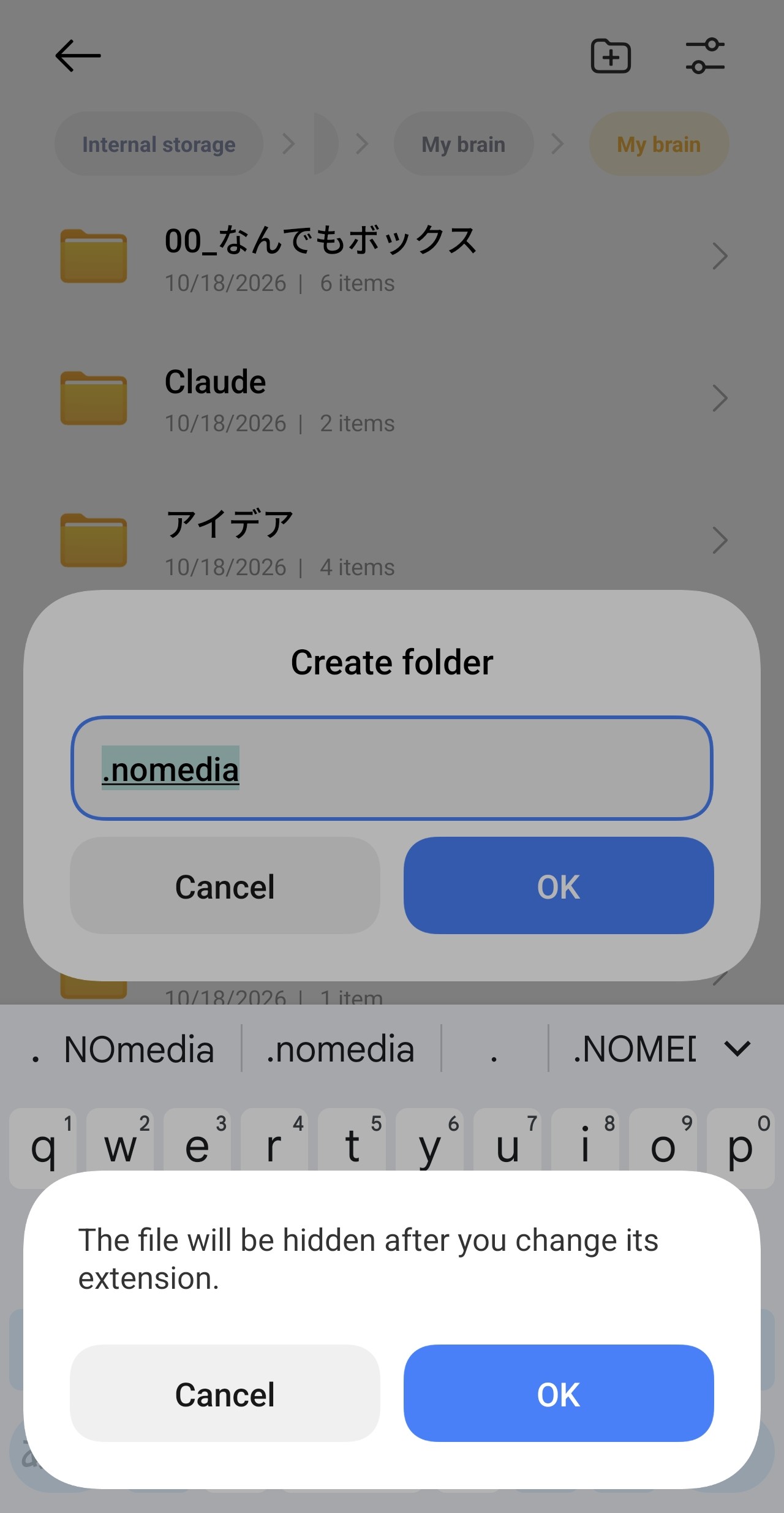
The .nomedia you made will disappear from view, but that’s fine. Names that start with a dot are treated as hidden files.
They disappeared right away, without a restart
After making it, I opened the gallery again……
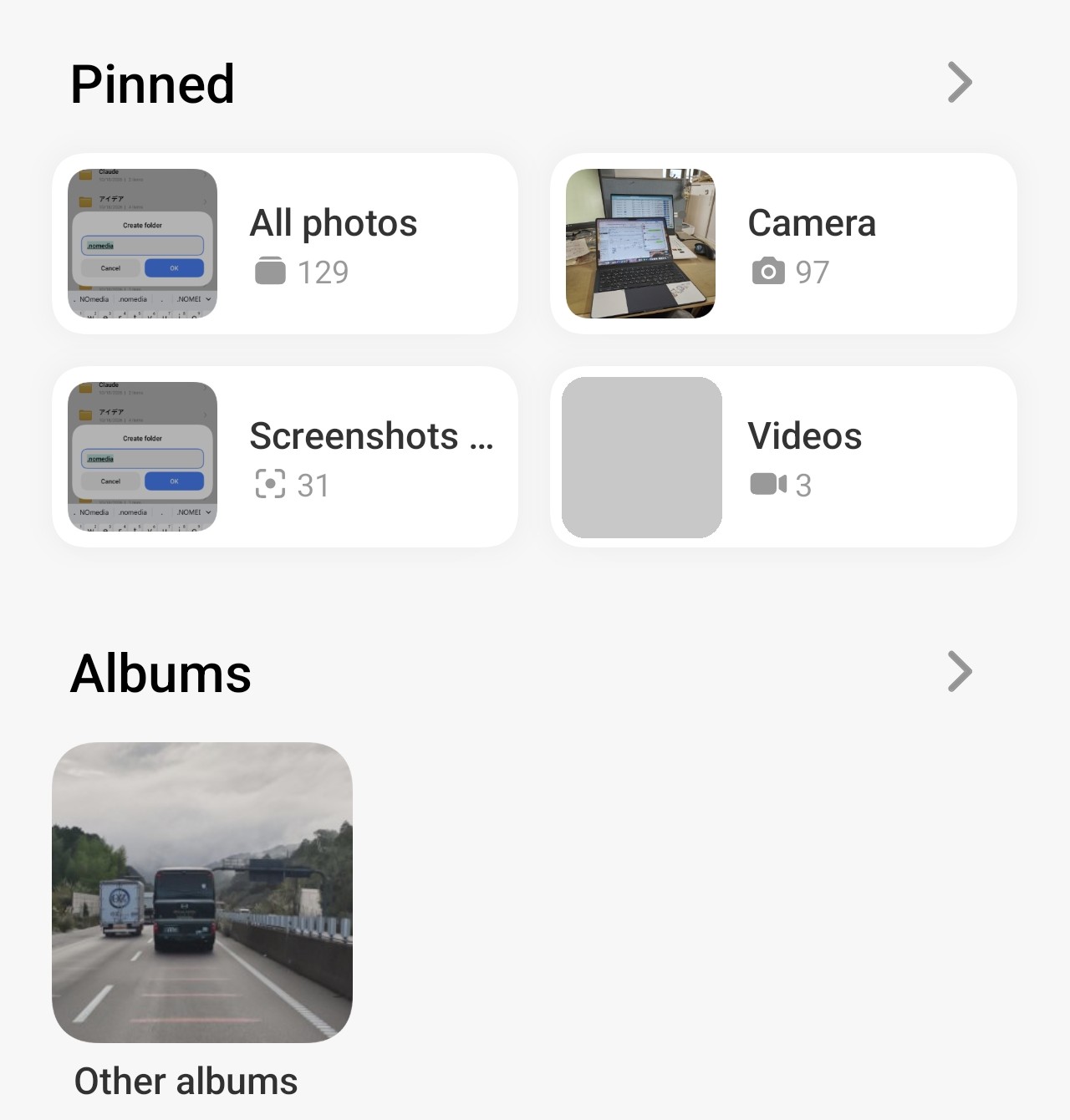
“All photos” went from 305 to 129. The 97 camera photos are still there.

In “Other albums,” all the vault folders that had been lined up disappeared too, leaving only LINE.
I didn’t even restart, and they disappeared within a minute of making the folder.
I just did what Claude suggested, and they really did disappear right away, so I honestly thought, “Wow.”♪( ´▽`)
It turns out there’s a way to do just about anything, even hiding things from the gallery. I’ve also heard that Android is better than iPhone at this kind of customizing. Well, when you’re stuck, looking it up first really is the best way.

If they don’t disappear
① Restart your phone
② Settings → Apps → “Gallery” → Storage → “Clear cache” (don’t tap “Clear data.” Menu names may be a little different on your phone)
③ If that still doesn’t work, long-press each album in the gallery → “Hide” (Xiaomi’s official method)
Some people online say “Xiaomi’s gallery ignores .nomedia,” but it worked on my 17T Pro.
Do the images stop syncing? What about storage?
At this point, I had another question.
Once I made .nomedia, would the images stop syncing? Or would they still come in, just hidden, and keep taking up storage?
The answer was: .nomedia only “hides them from the gallery,” and syncing doesn’t stop.
- Images keep coming to your phone as before
- Images already on your phone are all hidden from the gallery too (you don’t need to delete them from your phone)
- They still take up storage (the images in my vault are about 106 MB, as shown on my Mac)
But come to think of it, if the images weren’t on my phone, Obsidian couldn’t show them. True. Well, of course・・・.
Also, the same images must have been on my iPhone too. They were just hidden inside the Obsidian app, so I couldn’t see them. It seems the Xiaomi didn’t make me use more storage.
Oh, and by the way, Remotely Save apparently also has a setting to skip syncing certain folders. But then I couldn’t see those images in Obsidian on my phone, so I don’t use it.
Also, if you have Google Photos backup turned on, it’s a good idea to check once whether anything was uploaded before you added .nomedia. I already had it turned off, so nothing was uploaded.
What I think after switching from iPhone to Android
This time, from checking the location to hiding everything with .nomedia, the steps themselves took less than five minutes.
When you switch from an iPhone to Android, small, detailed settings like this come up.
If you like fine-tuning settings or don’t mind doing it, Android lets you customize and adjust all kinds of things, so for some people, it’s really easy to use.
On the other hand, the iPhone has great design, and you can just use it with the settings you need, without worrying about the details.
Both are good, but for me, Android is a bit more fun because I can fine-tune things♪( ´θ`)ノ
I wrote about my first two weeks with the Xiaomi 17T Pro here: Xiaomi 17T Pro review (in Japanese).
Summary: before you delete anything in the gallery, use .nomedia
- When you use Obsidian on Android, the images in your vault show up in the gallery (this didn’t happen on iPhone)
- If you delete them in the gallery, they’re also deleted from Obsidian and the Mac you sync with
- Obsidian has no setting to hide them (you didn’t miss it)
- Just make a “.nomedia” at the top level of the vault on your phone (with Xiaomi’s File Manager, a folder works instead)
- They disappeared from the gallery right away, without a restart. The images and syncing stay the same
When I opened the gallery and wondered what all these images were, if I had deleted them to separate them from my camera photos, I would have wiped out the images for my blog on my Mac too. Leaving them alone was the right call.
To everyone else who has switched from an iPhone to Android and started using Obsidian on Android: before you delete anything in the gallery, .nomedia♪( ´▽`)


References
- Remotely Save (GitHub, README)
- How Remotely Save syncs (v3 design)
- Obsidian Help: Android
- Obsidian Forum: Adding a .nomedia file automatically inside the media folder on Android
- Xiaomi: Hide albums in Gallery
☕ Enjoyed this post?
I'm a Japanese blogger who spent 8 years relearning English from scratch.
If this post helped you, a coffee would mean a lot — thank you for reading!


Leave a Reply