
At work, information is very important. From planning products to developing and selling them, everything is closely tied to information.
And not just products: with people, too, you want to keep an eye on things like the hobbies and tastes of your top customers, or things they’d be happy to hear about.
I think that kind of information goes in your own “contacts notebook.”
Of course, beyond your clients, being able to collect information about your industry, products and competitors is a big advantage at work.
Gathering it one search at a time takes effort and time, and summarizing it takes time too.
This is where subscribing to Google Alerts as an RSS feed comes in handy: it collects the information you care about automatically.
The screenshots are from the Japanese version of Google Alerts, but the screens and options are the same.
- 1 With Google Alerts RSS feeds, you get updates from the sites and blogs you want automatically
- 2 Open the Google Alerts site
- 3 Sort out the information you want and line up keywords
- 4 How to read the information that comes into Google Alerts
- 5 Customizing the search
- 6 Search for any of several keywords: OR
- 7 Search for pages that also contain something else: AND
- 8 Remove noisy information: the minus sign
- 9 To target a site, use site:
- 10 How to write other search operators
- 11 Choose the options and create the Google Alert
- 12 Settings for all the alerts you create in Google Alerts
- 13 Use subscription tools to get information efficiently and become well informed
With Google Alerts RSS feeds, you get updates from the sites and blogs you want automatically
As you gather information with a search engine, you find favorite blogs and news sites and bookmark them, right?
With one or two sites, checking for new posts is actually fun ( ̄▽ ̄)
But as the amount of information you want grows, checking sites for updates and searching for keywords gets messy and takes a huge amount of time. So you set up an RSS reader with Google Alerts to fetch updates and new articles automatically.
You often see this radar-like icon on blogs:

There’s one at the top right of this blog too.

This icon is the RSS feed icon.
Click it, and lots of text in XML format appears.
This XML information is what lets you automatically get a site’s updates and new posts.
You can set up feeds manually, but Google Alerts makes it much easier to read and collect them.
You have Google Alerts read the RSS feeds and deliver them to the reader app you’ve set up.
Any destination that supports RSS will work, so here’s how to set things up in Google Alerts, up to creating the RSS feed.
Open the Google Alerts site
If you don’t have a Google account, you’ll need to sign up.
If you use Gmail, you already have an account, so open the Google Alerts site while signed in.
Google Alerts: www.google.com/alerts. You can set up RSS easily here!
When you open it, a very simple screen shows a search box that says Create an alert about…

Type keywords for the information you want to collect here.
Sort out the information you want and line up keywords
I’ve set up alerts to collect all sorts of information too.
When thinking of keywords for the information you want, start with the big picture.
Here, let’s see how best to collect information if you’re in the confectionery industry and want to follow trends around Halloween.
Halloween has become hugely popular in Japan in recent years, and around 2016 its market was even said to have overtaken Valentine’s Day.
For example, if you’re on the selling side, as a manufacturer, wholesaler or retailer, you’ll first want to research which products are popular, general trends, competitors and your own products.
Let’s try searching for Halloween.
All sorts of information about Halloween came up.
But what I want is confectionery industry information. Noisy information like concerts and costume events pours in too.

Limited Halloween menus at restaurants, average budgets for related products, even music events: all kinds of information came in.
Click any that interest you to go to that site.
Like this, sites that mention the keyword you set, here “Halloween,” anywhere on the page are listed through RSS.
How to read the information that comes into Google Alerts

Cards are lined up showing whether the source is news, the web or a blog (you can set this later), the title and site name of the article, and an excerpt.
When setting keywords, fine-tune them here, remove noisy sites and organize things so you collect only the information you want as much as possible.
Of course, in terms of general trends, you can see what’s popular and who’s excited about which events, but you can make multiple alerts, so it’s more efficient to set and separate them each time.
First, I want information about confectionery.
Customizing the search
Looking at the alert results for “Halloween,” you notice that only pages that literally say “Halloween” are hits.
In Japanese, Halloween is written in two ways (ハロウィン and ハロウィーン), and of course some shops advertise with the English word, Halloween.
With just one spelling, it looks like I’d miss a lot of information, so let’s customize the search to hit any of the three.
Search for any of several keywords: OR
Put OR in capital letters, with a space on each side, between the keywords.
ハロウィン OR ハロウィーン OR Halloween“OR” means “or, any of these,” so sites containing any of the three are hits.
Sites with all three are hits, and so are sites with just one.

Like this, you can also pick up sites that use both spellings in their text.
With the main keyword decided, now let’s add keywords about sweets for the confectionery industry.
Search for pages that also contain something else: AND
To find sites that contain all the keywords you specify, add AND in capital letters with a space on each side. (In Google, a space already means AND, so you can leave AND out.)
I want information about sweets among pages that contain any of the three Halloween keywords, so I add “sweets.”
If you also want information about candy, cookies, cakes and so on, join them with OR too:
ハロウィン OR ハロウィーン OR Halloween AND 菓子 OR 飴 OR クッキー OR ケーキ(That’s Halloween in three spellings, AND sweets OR candy OR cookies OR cake.) In English, you might write: Halloween (sweets OR candy OR cookies OR cake)
Now articles that contain at least one keyword from each group are hits.
Let’s look at the alert. I’ve colored the matching keywords to make them easy to see.

Quite a lot of confectionery information is coming up now, with articles that seem to show the trends.
However, some results don’t show any of the sweets keywords.
That’s because category names on the site, or text used in images, can also count as matches, so sometimes you can’t see them.
Remove noisy information: the minus sign
Sometimes feeds you don’t need come up.
In that case, -keyword excludes anything that matches that keyword.
For example, if you don’t want any more Halloween information that uses maple syrup, write it with no space after the minus sign:
-maple syrup(For a phrase, put it in quotation marks after the minus sign.) Sites that mention it are removed from the search.
In the example above, if you look near the bottom, YouTube results are showing up.
Here, I only want to follow trend information, websites and news, so let’s remove YouTube from the search.

To target a site, use site:
site:youtube.com, typed with no spaces, means “on YouTube’s site,” so exclude it with a minus sign.
After site:, you need to enter the domain.
ハロウィン OR ハロウィーン OR Halloween 菓子 OR 飴 OR クッキー OR ケーキ -site:youtube.comThe YouTube results disappeared.
As a test, if you remove the minus sign and use site:youtube.com,

now it only finds matches for your keywords within YouTube.
If you add something like site:twitter.com (now x.com), you can see what individuals are posting right now, so it might be worth trying with your company name or products.
Add competitor information, weed out keywords you don’t need, and collect information efficiently.
How to write other search operators
To combine the other keywords around one you must keep, group them with parentheses ( )
If, in Halloween confectionery news, pumpkin is your main ingredient, pumpkin is a must, so put the other keywords in parentheses:
pumpkin (Halloween (sweets OR candy OR cookies OR cake)) -site:youtube.comThis finds things like Halloween cookies made with pumpkin.
To search for a phrase, put it in quotation marks “ ”
If you want Halloween news from 2017 and search for 2017 Halloween, you get articles that contain both 2017 and Halloween anywhere.
Like a giant Halloween cookie made with 2017 g of butter.
So to treat “2017 Halloween” as a set (a phrase), put it in quotation marks:
"2017 Halloween"You can also combine it with OR, such as "2017 Halloween" OR "Halloween 2017".
To match keywords in the title: intitle:
An article’s title holds important keywords, so searching titles can sometimes make it easier to collect information.
To find words in titles, use intitle:keyword.
intitle:"Halloween 2017"This finds articles with “Halloween 2017” in the title.
And if you don’t want horror, you can remove it with a minus sign:
intitle:"Halloween 2017" -horrorTo search for several keywords in the title, use allintitle:keywords.
allintitle:pumpkin cookiesThis finds articles with both pumpkin and cookies in the title.
Choose the options and create the Google Alert
Once you’ve set good keywords for your Google Alert, set it up so you can subscribe by RSS.
From then on, new blog posts and web pages are delivered as soon as they go up. Handy (*´▽`*)
After setting the keywords, go on to the options.
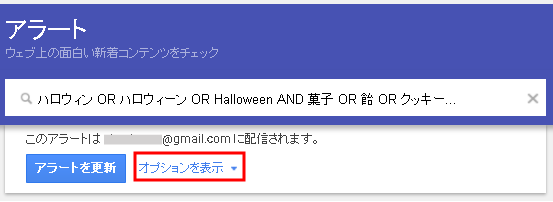
Open Show options, and a screen like this appears.

How often: “As-it-happens” delivers an email each time a new article is found. “At most once a day” delivers one summary email a day, for when frequent emails are annoying or you’d rather read everything at once. “At most once a week” is a weekly report. If you choose an RSS feed as the destination, this can’t be changed and is set to as-it-happens, but you can bundle delivery times in a later setting.
Sources: “Automatic” is recommended, but choose this to narrow the sources. Blogs only gives hits from blogs, News from news sites, and so on. With Automatic, it searches almost every kind of site. Adjust it to fit the information you want.
Language: choose the language if you want to target sites in another language.
Region: choose the region if you want to target sites from another region.
How many: “Only the best results” targets only top-ranking search results, for when you want carefully chosen information. “All results” targets every site on the web. Even future giant sites aren’t at the top when they first appear, so this can help you find sites with real substance.
Deliver to: your signed-in email address delivers summary emails to Gmail. “RSS feed” is for receiving it in another RSS service.
In this case, I set everything except Deliver to to the recommended choice for now. You can change these anytime after creating the alert, so just change them whenever you want to target something else.

When you’re done, click Create Alert, and the alert is created.

Settings for all the alerts you create in Google Alerts
You can also change settings for all your alerts.
Right now there’s only one alert, but as you add more, these settings apply to all of them.

There are two main settings.
A window appears where you can choose Delivery time and Digest.
Delivery time: set what time you receive notifications. If you want to read the news first thing at 7:00 a.m., choose 7:00. If you want to read things in real time as soon as they appear, leave it unchecked.
Digest: all your alerts are delivered together as a digest. When checked, every alert you’ve created arrives as one digest at the interval you choose.
Here’s the Gmail I received with delivery time 7:00 and digest both checked.
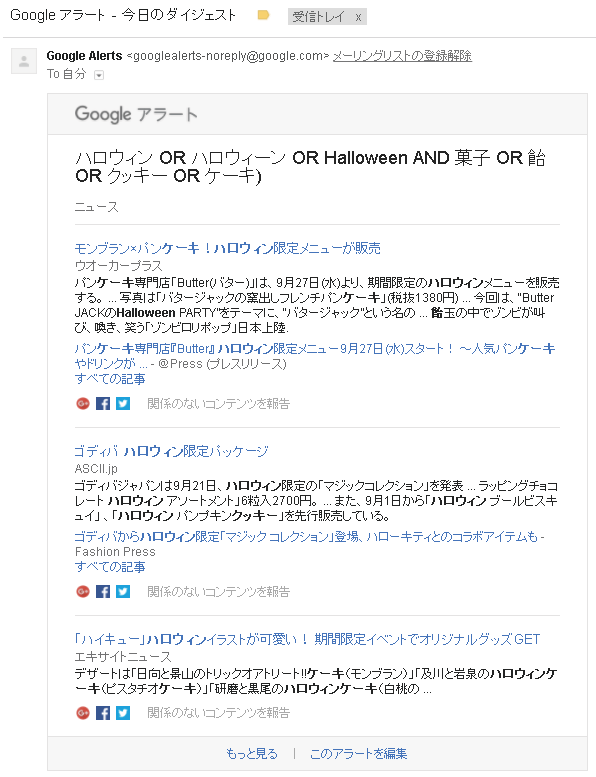
Like this, everything arrives in one big digest.
In general, if you always want to be in touch with the latest information, uncheck all the settings for all alerts. If frequent emails are annoying and you’d rather read a summary once a day at a set time, check them.
Use subscription tools to get information efficiently and become well informed
That’s the basic setup of RSS feeds with Google Alerts.
Set the keywords you want, and Google Alerts automatically sends you a feed you can subscribe to.
How do you read these RSS feeds like email in Outlook, which comes preinstalled on many PCs?
If you subscribe to RSS feeds for your keywords in an RSS reader app or the email app you use every day, you’ll naturally become strong on information and a Super Suitman!
Manage the information you want, and find as much as you need when you need it.
Go ahead and set up the information you want in your own way.
☕ Enjoyed this post?
I'm a Japanese blogger who spent 8 years relearning English from scratch.
If this post helped you, a coffee would mean a lot — thank you for reading!


Leave a Reply