

Picture this: you’ve got a parent folder with twenty (or a hundred) subfolders inside, and you need to zip each one individually — not all of them crammed into one giant archive, but twenty separate .zip files, one per folder.
Right-clicking each folder one at a time and choosing “Compress to ZIP” works fine for two or three folders. For twenty? That’s twenty rounds of right-click, wait, rename. For a hundred? You’d lose the afternoon.
There’s a much faster way, and it’s completely free.
The tool: 7-Zip + a tiny batch file
The trick is combining 7-Zip (a free, open-source file archiver) with a batch file that tells it to zip whatever you drop onto it — one archive per item, automatically.
You don’t need to know how to code. You’re copying four lines of text into a file once, and reusing it forever.
Step 1: Download and install 7-Zip
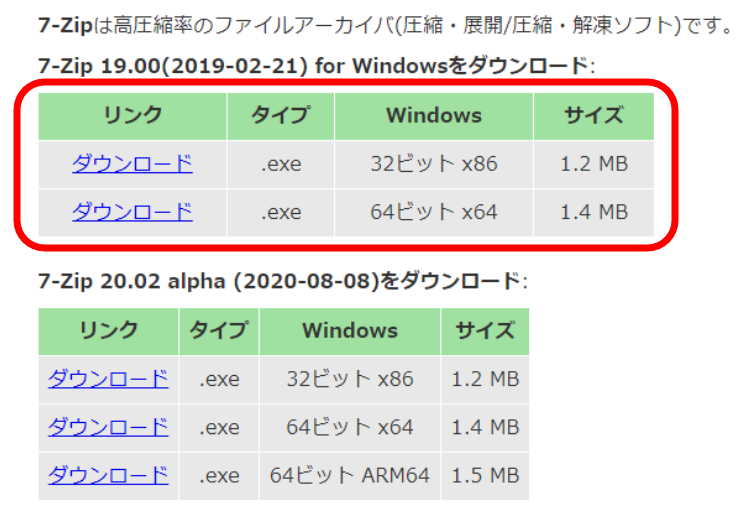
Head to the official 7-Zip site and grab the installer that matches your Windows version.
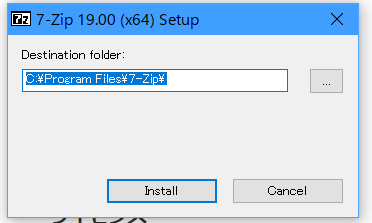
Run the installer with the default settings. By default, it installs to:
C:\Program Files\7-Zip\7z.exeThat path matters for the next step, so keep it in mind (or check where it landed if you changed the install location).
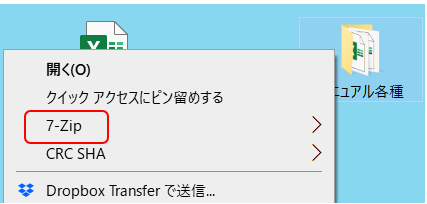
Step 2: Create the batch file
In the parent folder — the one containing all the folders you want to zip — create a new text file. Right-click an empty spot → New → Text Document.
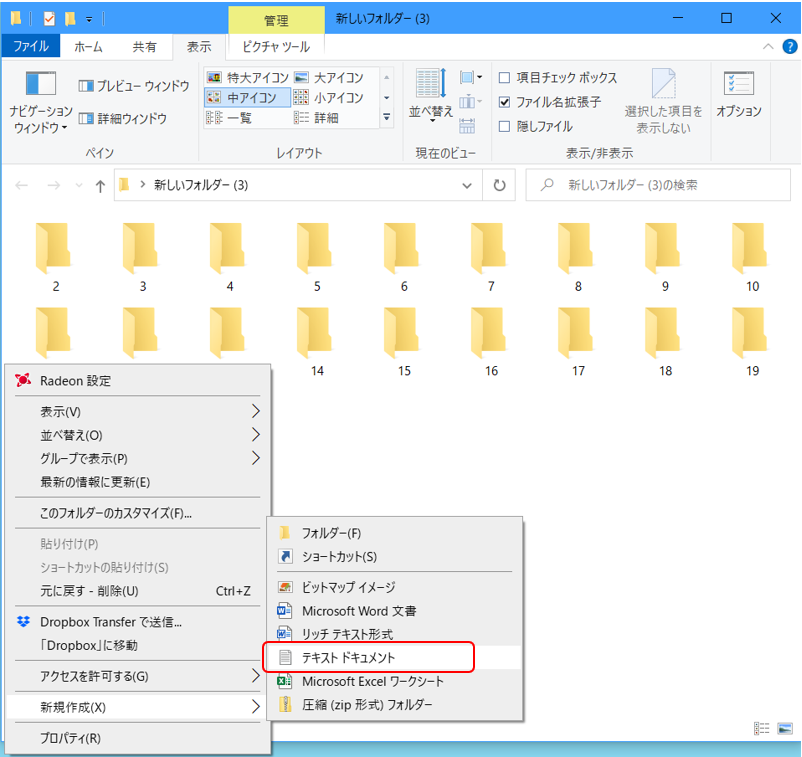
Open it and paste in the following:
@echo off
set ZIP_PATH="C:\Program Files\7-Zip\7z.exe"
for %%f in (%*) do (
  %ZIP_PATH% a -tzip %%f.zip %%f
)
pause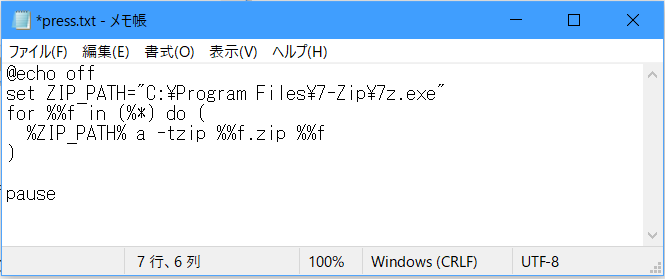
Save and close it.
Step 3: Rename it from .txt to .bat
Rename the file so it ends in .bat instead of .txt.
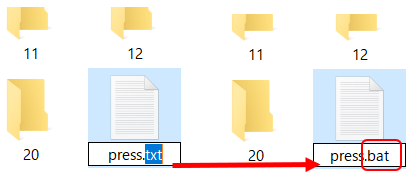
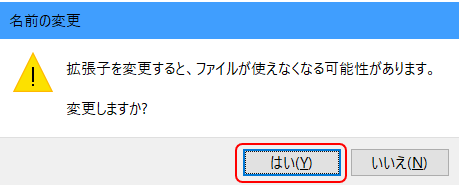
Windows will warn you that changing a file extension might make it unusable — click through, that’s expected. This is what turns a plain text file into something Windows can actually execute.
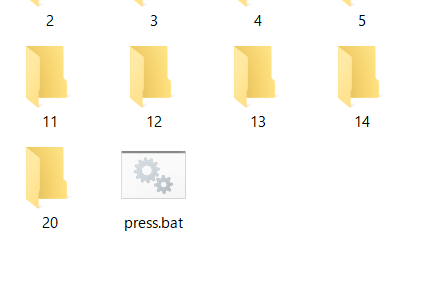
Step 4: Select all your folders and drag them onto the batch file
Now the fun part. Select every folder you want zipped (click the first, Shift-click the last, or Ctrl-click to pick specific ones), then drag the whole selection onto the .bat file you just created.
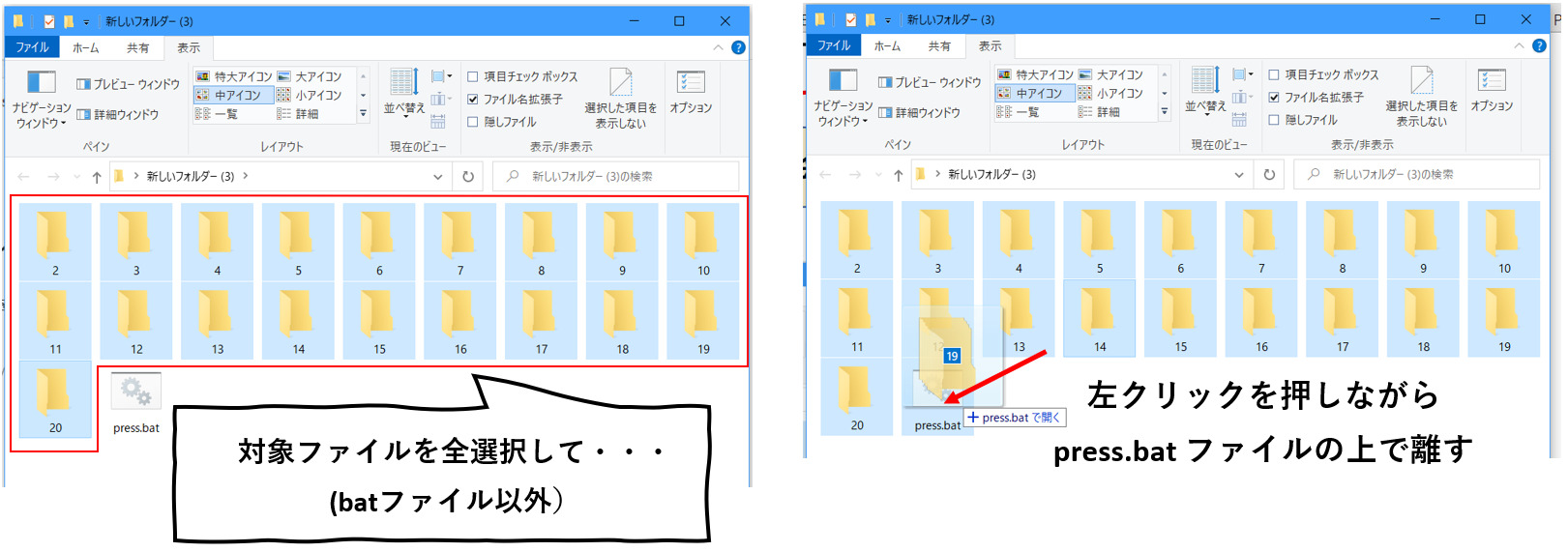
A command prompt window will pop up and start working through them one by one.
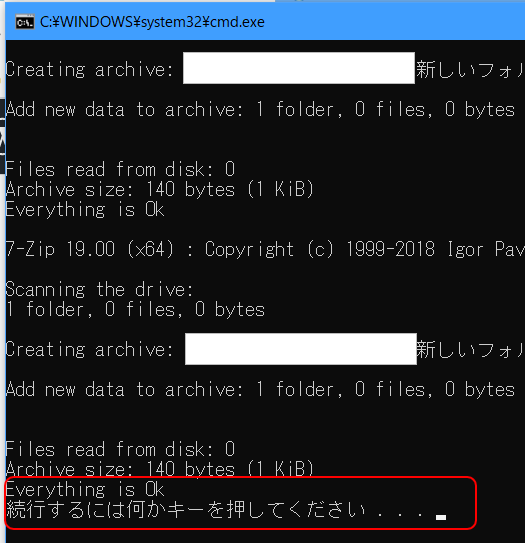
When it’s done, it’ll say “Press any key to continue” — hit any key, and you’re finished.
Each folder now has its own matching .zip file sitting right next to it, fully compressed.

Recap
- ✔ Download and install 7-Zip (free)
- ✔ Create a text file, paste in the four-line script
- ✔ Rename it from
.txtto.bat - ✔ Select your folders, drag them onto the batch file — done
Whether it’s 5 folders or 100, this turns a tedious afternoon of right-clicking into a five-second drag-and-drop. Once the batch file exists, you can reuse it in any folder, forever — just keep a copy somewhere handy.
☕ Enjoyed this post?
I'm a Japanese blogger who spent 8 years relearning English from scratch.
If this post helped you, a coffee would mean a lot — thank you for reading!


Leave a Reply