

This post contains a referral link.
In PART 1, I built a system where AI automatically generates English study material, and in PART 2, I finished the part that turns that text into audio and delivers it to an Anki card.
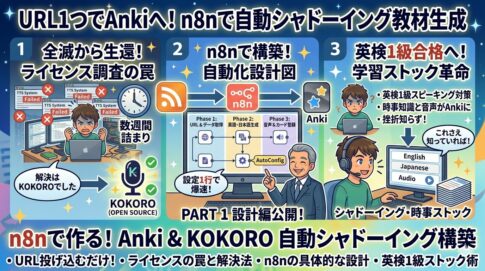

With that, the system where “just pasting the text of an article I’m interested in and want to stock delivers a shadowing card automatically” was more or less done. Long articles take time to read even one, so I made it summarize them for stocking, but it’s easy to keep the article as is, make the summary longer, or have it adjust the level. You can easily make it for Eiken Grade 3 or Grade 2, too, so I’m enjoying imagining sharing it with fellow learners so everyone’s English level goes up.
What I learned from actually using it
Right after it was finished, I stocked all kinds of articles, because it was fun watching the cards get made automatically. When I read English news and find an article I like, I copy and paste the text right away, sync, and the card is in Anki. I read the stocked articles in my spare time and shadow along with the audio. I really recommend it.
But after using it for a while, since I’d set it up with American English at first, I noticed:
“The audio is always American English.”
I think from around Eiken Grade 2, accents from different countries start getting mixed into the listening test… For Grade Pre-1, there was full-on British English and Australian English, so I thought it would be even better if accents from different countries were created automatically all at once, and I could choose which accent to listen to with buttons on the card.
Since it’s already generating everything automatically, couldn’t I make three versions, US, UK and Australian, all at once? It would be fun to compare three accents on one card.
Increasing the accents to three
In the n8n (an automation tool) flow, I added a step that sets “which accent to read it in” before generating the audio.
Specifically, all I did was add one node (a processing block) called Voice Config that returns the settings for the three accents together. After that, n8n automatically repeats it three times, “for US, for UK, for AU,” and generates the audio.
The voices come from Edge TTS, a service Microsoft provides for free. It’s high-quality text-to-speech used in services for native English speakers, and it’s great that it’s free to use.
When I compared them, though, they all sounded like standard accents and were easy to listen to. I thought a better paid service might be able to make voices with more specific regional accents, so I added that to my future to-do list.
| Accent | Voices used |
|---|---|
| 🇺🇸 American English | en-US-ChristopherNeural / en-US-AriaNeural |
| 🇬🇧 British English | en-GB-RyanNeural / en-GB-SoniaNeural |
| 🇦🇺 Australian English | en-AU-WilliamNeural / en-AU-NatashaNeural |
Choosing a male or female voice at random
For each accent, I prepared one male and one female voice, and one of them is chosen at random every time a card is generated. Until you press the button, you don’t know if it’s a male or female voice, just like a test… Not bad ♪( ´▽`)
If it’s the same voice every time, you might only understand it because you’re used to that voice. Just changing the voice a little makes listening harder. Even with the same text, a different voice feels like a different exercise, and this was more effective than I expected.
The setup is just a few lines in an n8n Code node. I wrote an instruction to “pick randomly between male and female” for each of the three accents.
So I’m always using six kinds of audio material (actually three).
I wanted to organize the audio files, so I tried Japanese folder names
As the audio files increased, I decided to make a folder called audio/ in Obsidian (a note-taking app) to organize them. Everything is in English, and I rarely play audio straight from the files, so I thought it would be nice if I could tell what each one was just by looking.
So I wanted easy-to-understand names in Japanese. I wanted to put the category and title in the file name too, so I could tell later what the audio was. (The examples below are in Japanese.)
20260523【テクノロジー】AIが変える医療診断_US.mp3
20260523【テクノロジー】AIが変える医療診断_UK.mp3
20260523【テクノロジー】AIが変える医療診断_AU.mp3
I thought names like this would be easy to read and manage.
It played on my computer. But on my phone, I couldn’t hear any audio at all.
Kanji file names were the wall for mobile sync
For a while, I couldn’t figure out the cause. The Anki cards were properly reaching my phone, but only the audio couldn’t be heard.
Anki has a feature called “Check Media” that checks the status of media files. When I checked on my computer, it showed “Missing.” Same on my phone. I thought, “That’s strange, are the files not arriving?” But——
When I tried deleting that card and then ran Check Media, it showed “Unused (there are files not being used).”
This was an important clue.
- Missing = a card refers to an audio file, but the file can’t be found
- Unused = the file exists, but no card is using it
Getting “Unused” after deleting the card meant the audio file itself had reached my phone. It wasn’t that it hadn’t arrived; I guessed the file name was the problem.
When I looked into it, it seems Anki’s web sync service (AnkiWeb) has a limitation: it can’t upload file names that contain kanji or hiragana. It played on my computer because the file went straight into Anki there, but I guess it was rejected on the way to my phone through the web.
Fixed by changing to file names with only letters and numbers
I changed the file names to use only letters, numbers and symbols.
20260523_tech_rv0l_us.mp3
20260523_tech_rv0l_uk.mp3
20260523_tech_rv0l_au.mp3
The format is date_category (in English)_random ID_accent. Even if I make several on the same day in the same category, the random IDs almost never overlap.
I wrote a Japanese-to-English table of categories into the n8n code, so “technology” automatically becomes “tech,” “health and medicine” becomes “health,” and so on.
Now the audio reaches my phone without any problems.
But pressing the audio play button on the card didn’t play anything…
After that, I had Claude look into it further. If the audio was reaching my phone, maybe it was just the button not responding. I design the cards with code (HTML) in the note type’s card fields, and we were able to pin down that the code used for the buttons was the reason it didn’t play. Once I fixed the code, the audio played ♪( ´θ`)ノ
I think audio files with Japanese names might actually play too, but I read online that Japanese names don’t reach mobile. With Obsidian’s link feature, deleting an article also deletes the audio linked to it automatically, so managing them with English names isn’t really a problem. That’s where I stopped.
What the finished card looks like
When you open a card, there are three buttons in a row like this.

Press a speaker icon, and you hear the audio in that accent. Comparing the same text in US, UK and AU makes the differences in pronunciation and intonation clear. It’s interesting that even with the same sentence, just changing the accent changes how hard it is to catch.
Summary
Here’s a rough summary of what I did this time:
- Support for three accents: made it possible to automatically generate US, UK and AU audio at once
- Random male or female voice: the voice changes every time a card is made, adding variety to listening practice
- File names with only letters and numbers: AnkiWeb refuses to upload file names that contain Japanese (kanji), so I changed the naming rule to letters and numbers only
The biggest lesson: “Just because it works on your computer doesn’t mean it works on your phone.” Because Anki syncs to phones through AnkiWeb, there are limits on file names. Checking “Are the files there?” with Check Media in Anki’s settings before suspecting your own code: I think this way of isolating the problem will keep being useful.
With PART 1 to 3, the shadowing material generator is done for now. My original goal, sending a URL and getting an Anki card with three accents generated automatically, was achieved.
I plan to write separately about how it went after using it for a while, including audio quality and how much it helped my learning.
🃏 I’ve also put all my Anki posts together on one page, sorted by what you need: getting started, settings, keeping it up, automation, audio and troubleshooting.

Referral link: if you sign up through it, I may receive free lesson minutes.
🌍 Hear American, British and Australian English from real tutors too
On Cambly, you choose your own tutor, so you can talk with native tutors from different countries and compare accents in real conversation. After talking with the same tutor for a long time, I even picked up their accent. Through my referral link, you get 10 extra minutes when you buy a trial. I’ve been taking lessons on Cambly since July 2021.
Try Cambly with my referral link →
The referral program isn’t available in every region.
- 1 What I learned from actually using it
- 1.1 Increasing the accents to three
- 1.2 Choosing a male or female voice at random
- 1.3 I wanted to organize the audio files, so I tried Japanese folder names
- 1.4 Kanji file names were the wall for mobile sync
- 1.5 Fixed by changing to file names with only letters and numbers
- 1.6 What the finished card looks like
- 1.7 Summary
- 2 English expressions I learned (B2–C1)
English expressions I learned (B2–C1)
I’m aiming for Eiken Grade 1, so I had AI pick out some useful phrases from this topic. These come up often when reading English articles about Anki and audio technology.
① iterate (to process repeatedly, to loop)
n8n iterates over each item returned by the Voice Config node, triggering the TTS request once per accent.
Used in programming and automation to mean “loop through.” It has a more technical nuance than “loop.” It often appears as “iterate over a list” or “each iteration.”
② invoke (to call, to start)
The button invokes a JavaScript bridge method, which instructs Anki to play the corresponding audio file.
A verb for calling a function or an API. More formal than “call” and common in technical documents. “Invoke a function / method / API” is the standard pattern.
③ nuanced (with subtle differences)
Understanding the nuanced differences between US, UK, and Australian accents takes consistent exposure over time.
It means “not simple, with fine differences.” It comes up often in topics like language learning, culture and politics. Remembering it as “a nuanced understanding / approach / argument” makes it easy to use.
☕ Enjoyed this post?
I'm a Japanese blogger who spent 8 years relearning English from scratch.
If this post helped you, a coffee would mean a lot — thank you for reading!



Leave a Reply